Notifications
Feature Overview
Radegast EDR provides email notifications to keep you informed about important security events. These notifications are sent based on your personal preferences and help ensure you don’t miss critical alerts when you’re not actively monitoring the console.
How Notifications Work
All notifications are sent via email and are controlled through your user settings. The system supports several types of notification events:
New login alerts: Notified when someone logs into your account
New encryption keys added: Notified when new keys are added to your account
Recovery key usage alerts: Notified when your recovery key is used
Encryption keys transferred alerts: Notified when your keys are transferred to another device
New device alerts: Notified about new alerts from your devices
Platform downtime and maintenance emails: Notified about platform maintenance
API key modification alerts: Notified when API keys are created or modified
Platform news and updates: Notified about platform news, updates, and releases
Admin notifications (Admins only): Notified about administrative events, such as when Rustinel agent releases are uploaded or deleted
Step-by-Step Guide
Accessing Notification Settings
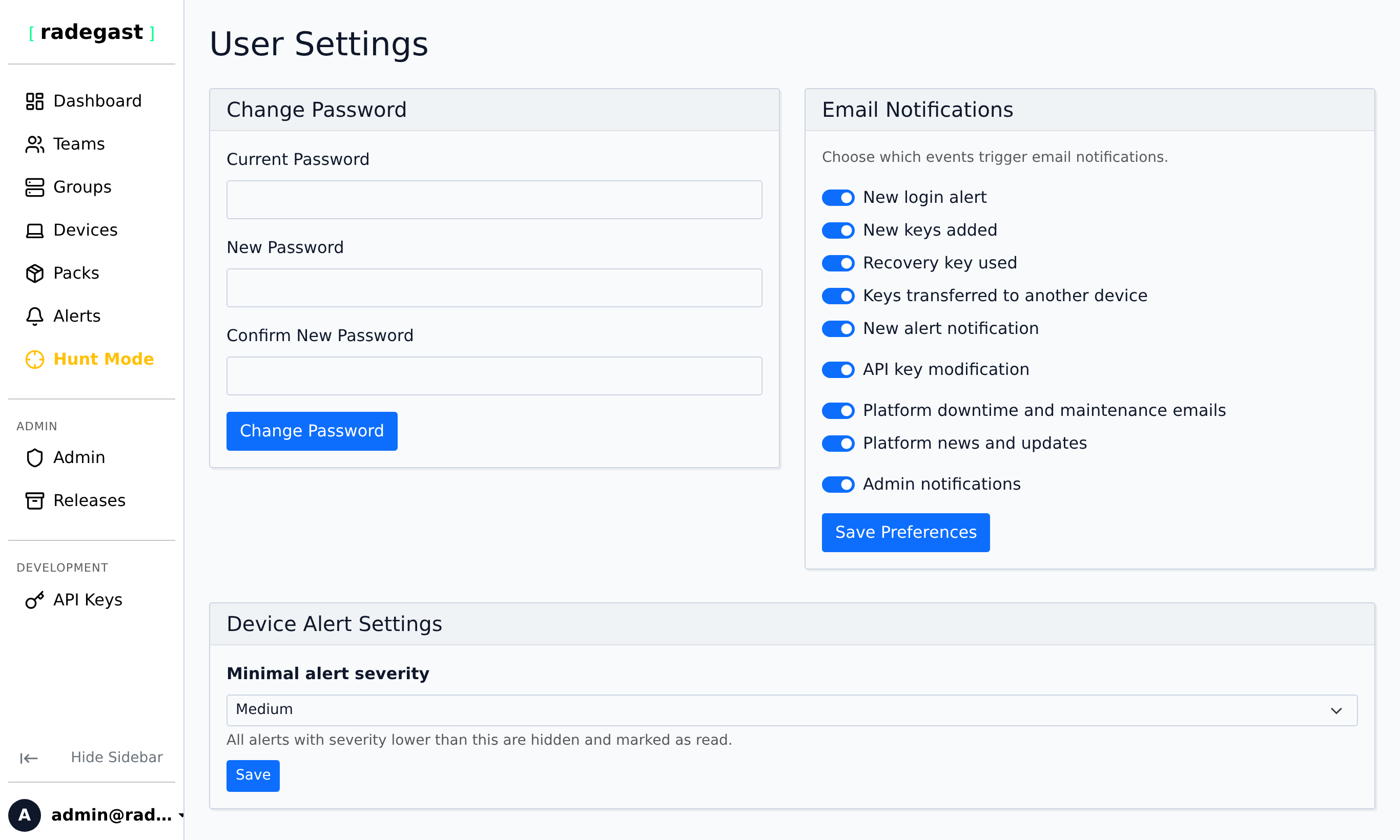
Log in to your Radegast Console
Click your profile icon or email in the top navigation bar
Select “Settings” from the dropdown menu
Navigate to the Notifications section
Configuring Email Notifications
You can enable or disable each type of notification individually:
In the Notifications settings, you’ll see toggle switches for each notification type:
New login alert
New keys added
Recovery key used
Keys transferred to another device
New alert notification
Platform downtime and maintenance emails
API key modification
Platform news and updates
Admin notifications (visible only to Administrator accounts)
Toggle each switch ON (enabled) or OFF (disabled) based on your preferences
For device alert notifications, you can also configure the minimum severity level:
Informational: Receive notifications for all severity levels
Low: Receive notifications for Low, Medium, High, and Critical
Medium: Receive notifications for Medium, High, and Critical (default)
High: Receive notifications for High and Critical only
Critical: Receive notifications for Critical alerts only
Click “Save” to apply your changes
Important: Alerts with severity BELOW your notification level will be automatically marked as seen and will NOT trigger email notifications. This helps reduce notification fatigue while ensuring you still see all alerts in the console.
Notification Content
Email notifications typically include:
Event Type: What kind of event triggered the notification
Timestamp: When the event occurred (in UTC)
IP Address: For login and key-related events, the source IP address
Device Information: For device alerts, the device name and ID
Severity: For alert notifications, the severity level
Action Links: Direct links to relevant pages in the console
Unsubscribe Links: Each notification email includes an unsubscribe link for that specific notification type
Managing Notification Preferences
You can temporarily disable all notifications or adjust them as needed:
To disable all notifications temporarily, toggle all notification switches to OFF
Remember that some notifications (like new device alerts) may be critical for security monitoring
Review your settings periodically to ensure they match your current needs
Email Delivery and Behavior
Queued Processing: Non-critical notifications are queued and processed in batches to avoid overwhelming your inbox
Bulk Notifications: If multiple events occur in a short time, they may be combined into a single bulk email
Debouncing: The system uses intelligent debouncing to prevent notification spam
Immediate Delivery: Critical notifications like login alerts are typically sent immediately
Verification Required: You must have a verified email address to receive notifications
Tips
Start with a higher severity threshold (e.g., High or Critical only) and lower it as you get comfortable with the notification volume
Use notification preferences to focus on the events that matter most to you
If you’re getting too many notifications, increase the severity threshold rather than disabling all notifications
Notifications are per-user settings and don’t affect other users’ preferences
Check your spam/junk folder if you’re not receiving expected notifications
Troubleshooting
Not receiving email notifications
Email not verified: You must verify your email address to receive notifications
Spam folder: Check your spam/junk folder
Email filter: Your email provider may be filtering the messages
Server configuration: The email server may not be properly configured (contact your administrator)
Notification disabled: Ensure the specific notification type is enabled in your settings
Severity filter: For device alerts, the alert severity may be below your notification level threshold
Getting too many notifications
Severity too low: Your notification level may be set too low
Many devices: You may have many devices generating alerts
Solution: Increase the severity threshold to reduce volume
Notifications are delayed
Email delivery: Email delivery can sometimes be delayed by email providers
Queue processing: The system may be processing a backlog of notifications
Bulk aggregation: Multiple events may be combined into a single email
Notification content is incomplete
Encrypted content: The alert content may be encrypted and require decryption in the console
Truncation: Some email clients may truncate long notifications
Solution: Click the link in the notification to view the full details in the console
FAQ
Why am I not receiving any email notifications?
Here is a checklist of the most common causes:
Email Address Unverified: Check your User Settings to ensure your email address is fully verified. Unverified accounts do not receive system emails.
Notification Subscriptions: Make sure the specific notification category (e.g., login alerts, platform downtime) is enabled in your personal settings.
Alert Severity Threshold: If you’re missing device alerts, check your severity filter setting. Events below your configured severity threshold are automatically marked as seen in the console and won’t trigger emails.
Development Fallback (Stdout): If the system administrator has not configured
RADEGAST_SMTP_HOSTin the server environment, the backend falls back to printing emails to the server console (stdout) rather than sending them.
I see emails in the server logs but not in my inbox. What is happening?
This indicates that the Radegast console backend is running in development fallback mode because the RADEGAST_SMTP_HOST environment variable is not set. Contact your system administrator to configure the SMTP server settings.
How can I connect the console to an SMTP server that does not support STARTTLS?
By default, the backend attempts to establish a secure connection using the STARTTLS extension. If your SMTP server (for example, a local smtp4dev instance used for development) does not support STARTTLS, you can disable it by setting the following environment variable on the backend container:
RADEGAST_SMTP_STARTTLS=false