API Keys
Feature Overview
API Keys allow you to authenticate with the Radegast EDR API programmatically, enabling automation, integration with other tools, and custom scripting. Each key has specific permissions (scopes) that control what actions it can perform.
What Value Does This Feature Add?
Automation: Script interactions with the Radegast API
Integration: Connect Radegast with other security tools and SIEM systems
Custom Workflows: Build custom dashboards, alerting systems, or reporting tools
Granular Permissions: Control exactly what each API key can access
Auditability: Track API usage by key
Step-by-Step Guide
Prerequisites
Your user account must have API Keys enabled in Settings
You must have completed email verification
You must have your encryption keys properly set up
Enabling API Keys for Your Account
Go to Settings > Security Settings
Look for “API Keys” or “API Access” section
Toggle “Enable API Keys” to ON
Click “Save”
Note: This setting may be controlled by your administrator. If you don’t see the option, contact your admin.
Accessing API Keys
Log in to your Radegast Console
Click “API Keys” in the main navigation menu or under Settings
The API Keys page will display all keys for your account
Understanding the API Keys List
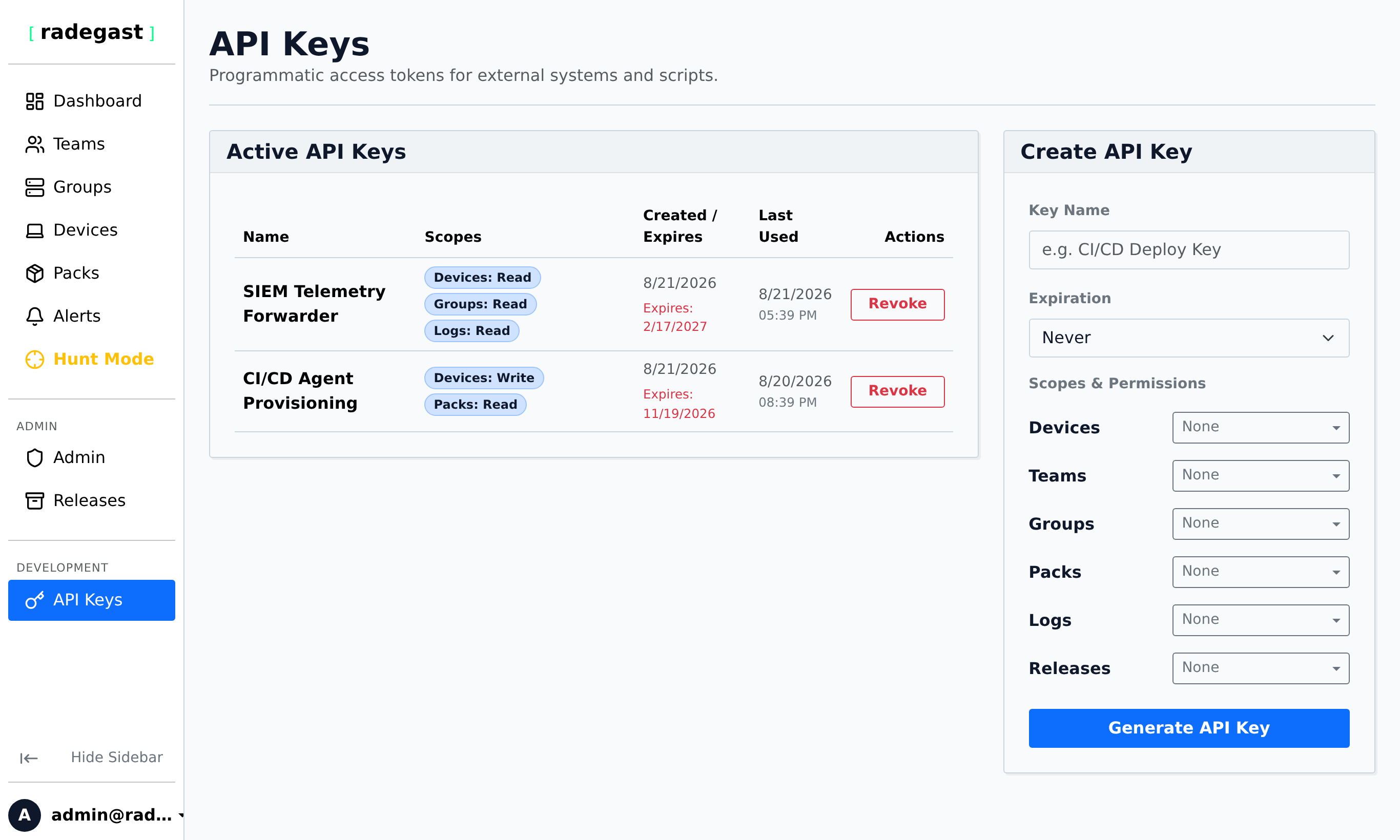
The API Keys page shows:
Name: Descriptive name you assigned to the key
Prefix: First 12 characters of the key (for identification)
Scopes: What permissions this key has
Created: When the key was created
Last Used: When the key was last used (if ever)
Expires: Expiration date (if set)
Actions: Buttons to manage the key
Creating a New API Key
On the API Keys page, click “Create API Key” or “Add Key”
In the creation form:
Name: Enter a descriptive name (e.g., “SIEM Integration”, “Backup Script”)
Scopes: Select which permissions this key should have:
Devices: Read, create, update, delete devices
Teams: Read, manage teams
Groups: Read, manage device groups
Packs: Read, manage detection packs
Logs: Read logs and alerts
Expiration (Optional): Set when this key should expire
Leave blank for no expiration
Keys cannot be used after they expire
Click “Create Key”
IMPORTANT: The modal will display the full API Key - copy this immediately!
This is the ONLY time you can see the full key
The key cannot be retrieved again once you close the modal
Store it securely (password manager, encrypted file, etc.)
Click “Done” to close the modal
Warning: If you lose this key, you cannot retrieve it. You must create a new key and update any systems using the old one.
Using Your API Key
When making API requests, include your API key in the Authorization header:
# Example using curl
curl -X GET "https://your-radegast-server.com/api/v1/logs" \
  -H "Authorization: Bearer rg_xxxxxxxxxxxxxxxxxxxxxxxxxxxxxxxxxxxx"
Note: All API keys start with rg_ followed by 32 characters.
Understanding Scopes
Each API key can have any combination of these scopes:
Scope |
Permissions |
|---|---|
Devices |
Read device list, create devices, update device info, delete devices |
Teams |
List teams, get team details, manage team membership |
Groups |
List groups, create groups, manage group membership, add/remove devices |
Packs |
List packs, download pack versions, upload new versions |
Logs |
Read logs/alerts, mark as seen, set resolution |
Tip: Create separate keys for different purposes with only the necessary scopes (principle of least privilege).
Viewing API Key Usage
The API Keys list shows:
Last Used: Timestamp of the most recent request using this key
You can use this to identify active vs. inactive keys
Keys that haven’t been used in a long time may be candidates for deletion
Deleting an API Key
Click on the API key in the list
Click the “Delete” or “Revoke” button
Confirm the deletion
The key will be immediately invalidated
Warning: Any systems or scripts using this key will stop working. Update them to use a new key before deleting.
Tip: If you suspect a key has been compromised, delete it immediately and create a new one.
Tips & Validations
Key Format: All keys start with
rg_followed by 43 URL-safe base64 characters (32 bytes of entropy)Key Security: Treat API keys like passwords. Never commit them to version control or share publicly.
Scope Limitations: A key can only perform actions within its granted scopes
Expiration: Expired keys are automatically rejected by the API
Rate Limits: API keys are subject to rate limiting (same as regular user sessions)
Audit Logs: API usage is logged, but the full key is never stored in logs
Tip: Use descriptive names that indicate both the purpose and the system using the key (e.g., “SIEM-Splunk-Prod”, “Backup-Script-Daily”)
Tip: Set expiration dates for temporary or testing keys.
Tip: Rotate API keys periodically, especially for critical integrations.
Tip: Use separate keys for different environments (Production, Staging, Development).
Tip: If you have many keys, consider adding tags or descriptions to track their purpose.
Troubleshooting
Can’t create API keys
API Keys disabled: Your account may not have API Keys enabled in Settings
Admin restriction: Your administrator may have disabled API Keys for your role
Email not verified: You must verify your email address first
Encryption keys missing: You may need to set up your encryption keys first
API key not working
Wrong key: Verify you’re using the correct key (starts with rg_)
Copied incorrectly: Ensure the entire key was copied without spaces or line breaks
Scope insufficient: The key may not have the required scope for the action you’re attempting
Expired: The key may have expired
Not activated: New keys are active immediately after creation
Character encoding: Some characters may be confused (0/O, l/1, etc.)
“Invalid token” error
Malformed key: The key format may be incorrect
Key revoked: The key may have been deleted
User disabled: Your user account may be disabled
Token type: API keys are Bearer tokens, not Basic Auth
Can’t see API Keys option
Not logged in: You must be logged in to see your API keys
Permission issue: Your account may not have permission to use API keys
Feature disabled: The API Keys feature may be disabled on your instance
Requests not working with API key
Wrong endpoint: Verify the API URL is correct
Missing header: Ensure the Authorization header is properly formatted:
Bearer rg_xxxx...CORS issue: If making requests from a browser, CORS may block the request
HTTPS required: API requires HTTPS, not HTTP
Scope missing: The key may not have the required scope for that endpoint
Key was exposed
Immediate action: Delete the exposed key immediately
Create new key: Generate a new key with the same scopes
Update systems: Change all systems using the old key to use the new one
Audit: Review logs to see if the exposed key was used maliciously