Exclusions
Feature Overview
Exclusions allow you to filter out specific security events that you know are safe or expected, reducing alert fatigue and false positives. Using JSONata query expressions, you can define precise patterns to exclude from triggering alerts, helping your team focus on genuine security threats.
Hard vs. Soft Exclusions (Extended EDR Only)
When Extended EDR is enabled, you can choose between two different exclusion behaviors:
Hard Exclusion (Default): The agent filters matching events completely. These events are never sent to the console database, preventing any console visibility.
Soft Exclusion: The events are still sent to the console database, but their severity is automatically downgraded to
informational, and they are visually marked with anExcludedbadge in the threat triage view. This preserves visibility and queryability of these events for threat hunting without causing alert fatigue.
Exclusions vs. Prevention Allowlist
It is important to distinguish between Detection Exclusions and the Prevention Allowlist:
Detection Exclusions (this guide) modify the alerting pipeline using JSONata queries. They determine whether an alert is generated and sent to the console (Hard Exclusion silences the alert; Soft Exclusion downgrades it to informational).
Prevention Allowlists modify the prevention pipeline of Active Response. They exempt specific path prefixes or process images (such as
sshdor databases) from being terminated while preserving full alert generation and console visibility.
Tip
If your goal is to stop Active Response from killing a critical daemon without blinding your team to potential abuse of that daemon, configure a Prevention Allowlist entry on the Device Group rather than an exclusion.
What Value Does This Feature Add?
False Positive Reduction: Eliminate known-safe events from your alerts
Custom Filtering: Create precise exclusion rules using JSONata query syntax
Group-Specific: Apply different exclusions to different device groups
Improved Signal-to-Noise: Focus your team’s attention on real threats
Flexible Rules: Define exclusions based on any field in the event data
Step-by-Step Guide
Accessing Exclusions
Log in to your Radegast Console
Click “Exclusions” in the main navigation menu
The Exclusions page will display all exclusion rules you have permission to view
Alternative Access: You can also manage exclusions from within a specific device group’s details page.
Understanding the Exclusions List
The Exclusions page shows:
Name: Descriptive name for the exclusion rule
Device Group: Which device group this exclusion applies to
Description: Brief explanation of what this exclusion does
Query: The JSONata expression that defines the exclusion pattern
Created: When the exclusion was created
Actions: Buttons to view details, edit, or delete the exclusion
Creating a New Exclusion
Steps
Navigate to the Exclusions page or to a specific device group
Click “Create Exclusion” or “Add Exclusion”
In the creation form:
Device Group: Select which device group this exclusion applies to
The exclusion will only affect devices in this group
Name: Enter a descriptive name (e.g., “Ignore Scheduled Scans”, “Allow Development Tools”)
Description: Explain what events this exclusion filters out
JSONata Query: Enter the JSONata expression that matches events to exclude
Exclusion Type (Extended EDR only): Select the exclusion behavior from the dropdown:
Hard Exclusion: Completely filter out matching events on the agent.
Soft Exclusion: Downgrade matching events to informational severity.
Click “Create Exclusion”
Note: You need pack write permissions on the selected device group’s teams to create exclusions.
JSONata Query Basics
JSONata is a powerful query language for JSON data. Here are some common patterns for exclusions:
Simple Field Matching
// Exclude events where process_name equals "backup-agent"
process_name = "backup-agent"

// Exclude events from specific user
user = "service-account"

// Exclude events with specific severity
severity = "informational"
Pattern Matching
// Exclude events where process_name contains "scan"
$contains(process_name, "scan")

// Exclude events where path starts with "/tmp/"
$startsWith(path, "/tmp/")

// Exclude events matching a regex pattern
$match(process_name, /^backup-/)
Multiple Conditions
// Exclude events where user is "backup" AND path contains "/var/"
user = "backup" and $contains(path, "/var/")

// Exclude events where process is in a list of known-safe processes
process_name ~> ["backup", "monitoring", "cron"]

// Exclude events with multiple severity levels
severity ~> ["informational", "low"]
Nested Field Access
// Exclude based on nested field
event.details.action = "read"

// Exclude based on array contents
$some(settings.permissions, permission = "admin")
Testing Your Query
Before saving an exclusion, test it to ensure it matches what you expect:
In the exclusion creation form, look for a “Test Query” or “Preview” button
This will show you recent events that would be excluded by your query
Verify that only the intended events are matched
Adjust your query if needed
Viewing Exclusion Details
Click on an exclusion in the list
The details panel shows:
Complete JSONata query
Which device group it applies to
Creation timestamp
All matching criteria
Option to test the query against recent events
Editing an Exclusion
Click on the exclusion
Click “Edit” or the edit icon
Modify any of these fields:
Name
Description
JSONata query
Click “Save Changes”
Tip: Always test your edited query before saving to ensure it still works as expected.
Deleting an Exclusion
Click on the exclusion
Click the “Delete” button
Confirm the deletion
The exclusion will be immediately removed and will no longer filter events
Bulk Exclusion Management
You can manage exclusions for a specific device group:
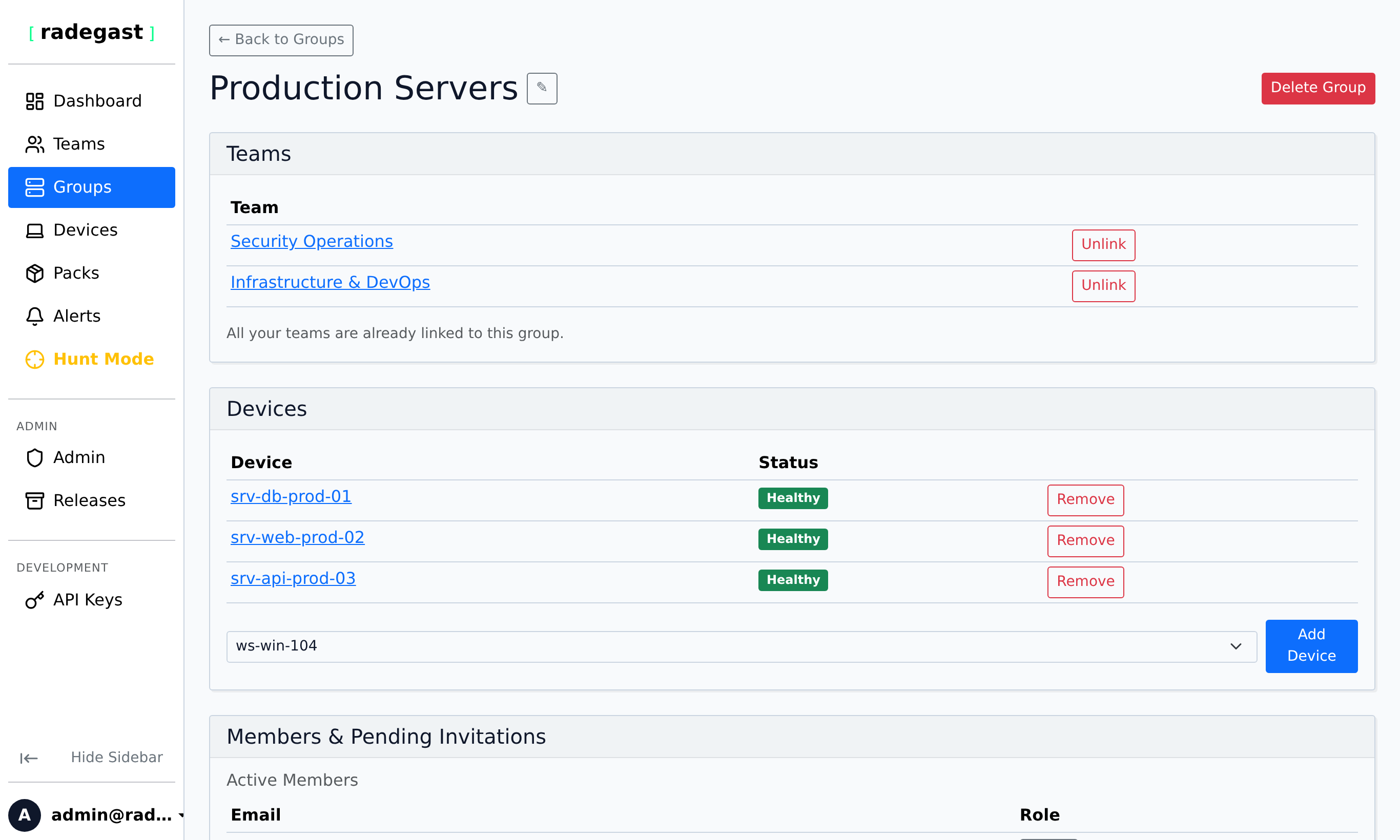
Go to Groups page
Click on the device group
Scroll to the Exclusions section
Here you can:
View all exclusions for this group
Create new exclusions specifically for this group
Edit or delete existing exclusions
Tips & Validations
Query Syntax: JSONata queries must be valid. Invalid queries will be rejected.
Group Scope: Exclusions only apply to the device group they’re assigned to.
Order of Operations: Exclusions are applied before alerts are generated, not after.
Performance: Complex queries may impact agent performance. Keep queries as simple as possible.
Security: Be careful not to exclude legitimate security events. Review exclusion patterns regularly.
Audit: Maintain documentation of why each exclusion exists.
Tip: Start with broad exclusions for known-safe categories, then add more specific ones as needed.
Tip: Use the description field to document WHY the exclusion exists (e.g., “Ignore nightly backup process - generates false positives”).
Tip: Test exclusions during low-traffic periods first to ensure they work as expected.
Tip: Review your exclusions periodically to ensure they’re still appropriate.
Tip: Consider creating a “Default Exclusions” group that all new devices are added to, containing common false positive patterns.
Troubleshooting
Can’t create an exclusion
Permission denied: You need pack write permissions on the device group’s teams
Invalid query: The JSONata query may have syntax errors
Missing group: You may not have selected a device group
Form validation: All required fields (group, name, query) must be filled
Exclusion not working
Wrong group: The exclusion may be assigned to a different group than the device
Query error: The JSONata query may not match the expected event format
Syntax error: Check the query for syntax errors
Case sensitivity: JSONata is case-sensitive by default. Use \(lowercase() or \)uppercase() if needed.
Event structure: The event fields may be different than you expect. Test with real event data.
Can’t see any exclusions
No exclusions: Your organization may not have any exclusions created yet
Permission issue: You need pack read permissions on teams that own device groups with exclusions
Group access: You may not have access to any device groups with exclusions
Can’t delete an exclusion
Permission denied: You need pack write permissions on the exclusion’s device group
Exclusion not found: The exclusion may have already been deleted
Group access: You may not have access to the device group the exclusion belongs to
Too many events being excluded
Query too broad: The exclusion query may be matching more than intended
Test first: Always test queries before saving to see what they match
Start specific: Start with very specific queries and broaden as needed
Review regularly: Check exclusion statistics to see how many events are being filtered
Events that should be excluded aren’t
Wrong group: The device may not be in the group with the exclusion
Query mismatch: The event data may not match your query structure
Timing: The exclusion may have been created after the events were already processed
Syntax: There may be a subtle syntax issue in your query