Managing Devices
Feature Overview
Devices are the endpoints you monitor with Radegast EDR. Each device runs the Radegast agent, which collects security-relevant events and sends encrypted logs to the backend for your review. This guide covers how to add, configure, manage, and monitor your endpoints.
What Value Does This Feature Add?
Endpoint Monitoring: Track security events from servers, workstations, and other endpoints
Centralized Management: View and manage all your devices from one interface
Status Tracking: Monitor which devices are online and when they last checked in
Secure Authentication: Each device uses a unique authorization token
Organization: Group devices logically for easier management and permission control
Step-by-Step Guide
Accessing the Devices Page
Log in to your Radegast Console
Click “Devices” in the main navigation menu
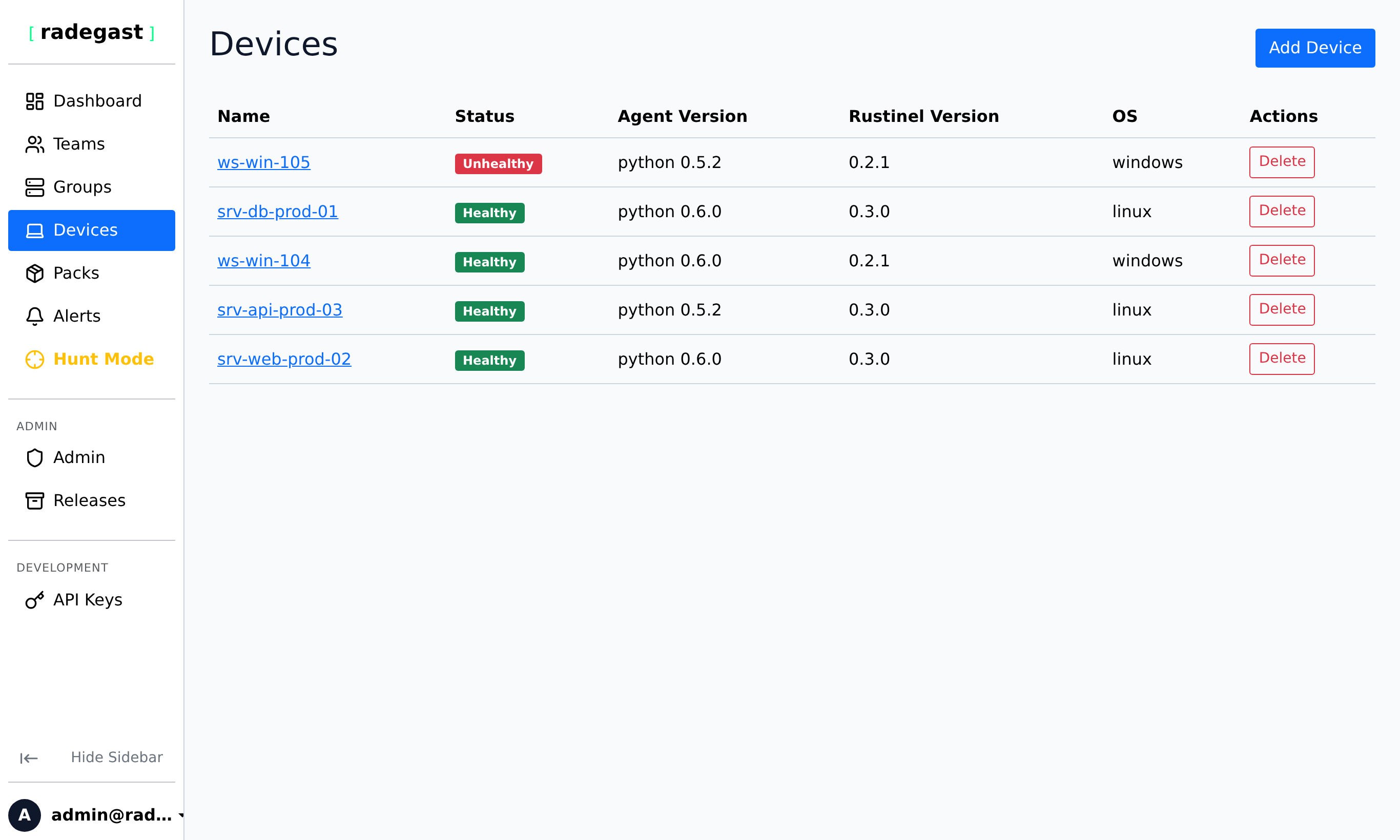
The Devices page will display all endpoints you have permission to view
Understanding the Devices List
The Devices page shows:
Device Name: The friendly name you assigned to the endpoint
Last Seen: When the device last communicated with the server (shows online/offline status)
Agent Version: The version of the Radegast agent installed
Groups: Which device groups this endpoint belongs to
Status: Online/Offline indicator
Actions: Buttons to view details, edit, or delete the device
Adding a New Device
Prerequisites
You must have at least one device group created
You must be a member of a team with admin permissions on that group
Steps
On the Devices page, click “Add Device” or “Create Device”
In the creation modal:
Device Name: Enter a descriptive name (e.g., “Web Server - Production”, “John’s Laptop”)
Device Group: Select which group this device should belong to
Click “Create Device”
IMPORTANT: The modal will display a Device Token - this is a one-time secret that you MUST save
Copy this token to a secure location
You will need it to configure the agent on your endpoint
This token cannot be retrieved again once you close the modal
Click “Done” to close the modal
Tip: If you lose the device token, you can generate a new one by reinstalling the device (see below).
Installing the Agent on a Device
Once you’ve created a device and saved its token:
Go to the “Install” section or the device’s detail page
Select the appropriate Operating System (Linux, Windows, or Mac)
Select the Architecture (amd64, arm64, or m5)
Follow the installation instructions provided
When prompted, paste the Device Token you saved earlier
The agent will start and automatically connect to the Radegast backend
See the Device Installation Guide for detailed OS-specific instructions.
Viewing Device Details
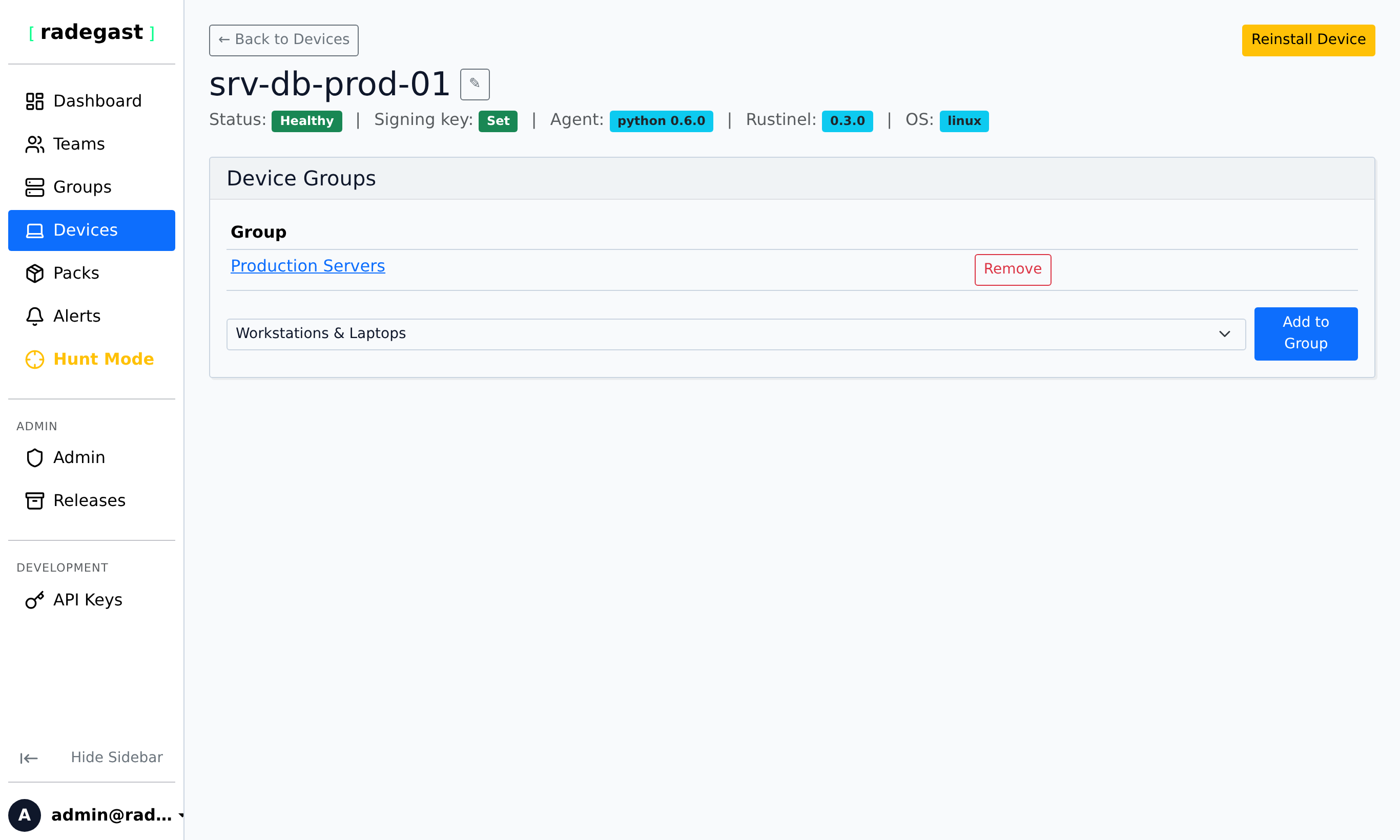
Click on a device name in the Devices list
The details panel shows:
Basic information (name, ID, when created)
Last Seen: Timestamp of last communication
Agent Version: Current version of the agent
Signature Public Key: The device’s public key for signature verification
Assigned Groups: All device groups this endpoint belongs to
Authorization Token: When the token was last changed
Editing a Device
Renaming a Device
Click on the device in the list
Click the “Edit” or “Rename” button
Enter the new name
Click “Save”
Note: You must have admin permissions on the device to rename it.
Changing Device Groups
Click on the device in the list
In the details panel, find the Groups section
Click “Manage Groups” or “Add to Group”
Select the group(s) you want to add the device to
Click “Save”
Tip: A device can belong to multiple groups, allowing different teams to access its data.
Reinstalling a Device (Generating New Token)
If you’ve lost a device’s token or need to reinstall the agent:
Click on the device in the list
Click “Reinstall” or “Regenerate Token”
Confirm the action
A new token will be generated
Save this new token - you’ll need it to reconfigure the agent
Update the agent configuration on your endpoint with the new token
Deleting a Device
Click on the device in the list
Click the “Delete” button
Confirm the deletion
The device will be removed from the system
Warning: Deleting a device cannot be undone. The device will need to be recreated and reinstalled if you want to monitor it again.
Managing Device Group Membership
Devices can belong to multiple groups, which allows:
Different teams to access the same device’s data
Applying different detection packs to the same device
Flexible organizational structures
Adding to a Group
Click on the device
In the Groups section, click “Add to Group”
Select the target group
Click “Add”
Removing from a Group
Click on the device
In the Groups section, find the group you want to remove
Click the “Remove” or trash icon next to the group name
Confirm the removal
Note: A device must belong to at least one group. You cannot remove a device from its last group.
Tips & Validations
Device Name: Must be unique within your teams’ scope. Names help you identify endpoints quickly.
Token Security: Device tokens are sensitive credentials. Treat them like passwords.
Last Seen Indicator: Shows online/offline status based on when the device last communicated with the server
Multiple Groups: A device can be in multiple groups, but you need admin permissions to move it between groups
Permission Requirements: To create or modify devices, you need admin permissions on at least one team that owns the target group
Token Length: Device tokens are long, random strings. Always copy the full token.
Tip: Use descriptive naming conventions like “Server-Web-Prod-01” or “Laptop-John-Doe-Dev” to easily identify devices.
Tip: Consider organizing devices into groups by function (Web Servers, Databases, Workstations) or by department (HR, Finance, Engineering).
Tip: If a device shows as offline (red last seen indicator), check that the agent is running and has network connectivity to the Radegast backend.
Troubleshooting
Device shows as offline
Agent not running: Check that the Radegast agent service/process is running on the endpoint
Network connectivity: Ensure the device can reach the Radegast backend URL
Token expired: If the token was recently changed, update the agent configuration
Firewall blocking: Check that outbound connections to the Radegast server are allowed
Time synchronization: Ensure the device’s clock is synchronized (NTP) - time differences can cause authentication issues
Can’t create a device
No groups available: You need at least one device group created first
Permission denied: You must be a member of a team with admin permissions on a group
Form validation: Ensure all required fields (name, group) are filled
Can’t see any devices
No devices added: You may not have any devices created yet
Permission issue: You need to be a member of a team that has access to at least one device group
Team membership: Verify you’re a member of the correct teams
Can’t delete a device
Permission denied: You need admin permissions on the device (through team membership)
Device not found: The device may have already been deleted
Token doesn’t work
Already used: Each token can only be used once during initial setup
Expired: If the device was reinstalled, the old token is invalidated
Copied incorrectly: Ensure you copied the entire token without any spaces or line breaks
Character encoding: Some characters may look similar (0 vs O, l vs 1). Double-check each character.
Device shows wrong version
Agent update pending: The device may need to be restarted for version updates to take effect
Multiple installations: If the agent was reinstalled, it may show the new version
Caching: Refresh the page to ensure you’re seeing current information