Detection Packs
Feature Overview
Detection Packs are collections of rules and configurations that define what security events the Radegast agent monitors for on your endpoints. Packs contain detection policies, exclusions, and other settings that customize the agent’s behavior. This guide covers how to create, manage, and deploy detection packs.
What Value Does This Feature Add?
Custom Detection Rules: Define what constitutes a security event in your environment
Policy Management: Create, version, and distribute detection policies across devices
Targeted Deployment: Assign specific packs to specific teams or make them globally available
Flexible Formats: Upload YAML configuration files or binary detection rules
Version Control: Manage multiple versions of packs and roll back when needed
Step-by-Step Guide
Accessing Packs
Log in to your Radegast Console
Click “Packs” in the main navigation menu
The Packs page will display all detection packs you have permission to view
Understanding the Packs List
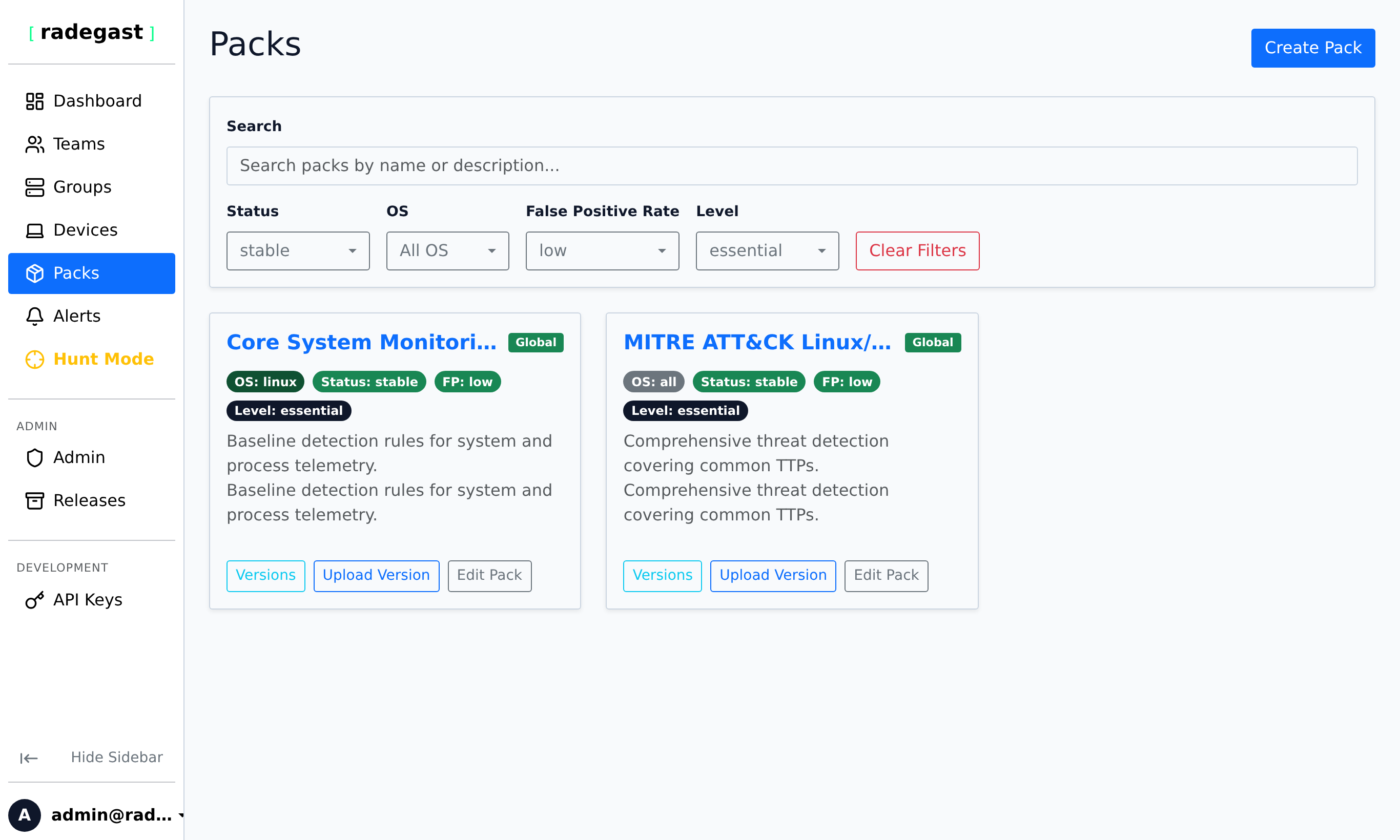
The Packs page shows:
Pack Name: The name of the detection pack
Pack ID: Unique identifier for API and configuration references
Description: Brief description of what the pack does
Version: Current/latest version of the pack
Teams: Teams that have access to this pack
Actions: Buttons to view details, edit, or delete the pack
Sorting Packs
By default, the packs listed on the page are sorted sequentially using multiple criteria:
Publication: Private packs (team-restricted) are shown first, followed by Global (public) packs.
Status: Packs are ordered by their version status:
stable>testing>experimental> unclassified/null.Expected False Positive Level: Packs are further ordered by their expected false positive rate:
low>medium>high> null.
Creating a New Detection Pack
Steps
On the Packs page, click “Create Pack” or “Add Pack”
In the creation form:
Pack Name: Enter a descriptive name (e.g., “Malware Detection”, “Network Monitoring”)
Pack ID (Optional): Unique identifier. If left blank, one will be generated from the name
Can only contain alphanumeric characters, dashes, and underscores
Must be unique across all packs
Description: Explain what this pack detects or monitors
Teams (Optional): Select which teams can access this pack
If no teams selected, the pack is public (accessible to all users)
Important: Only Admins and Maintainers can create public packs. Normal users can only create packs and share them with teams they belong to.
Click “Create Pack”
Note: To create a pack with team restrictions, you must have pack write permissions on those teams.
Uploading Pack Content
After creating a pack, you need to upload its content (rules, configurations):
Click on the pack in the list
Click “Upload Version” or “Add Version”
Select the file to upload:
YAML files: Configuration files defining detection rules
ZIP archives: Can contain multiple configuration files
Binary files: Compiled detection rules
Add version notes (optional but recommended)
Click “Upload”
Tip: The system will validate the upload and check for required files. If validation fails, you’ll see an error message.
Viewing Pack Details
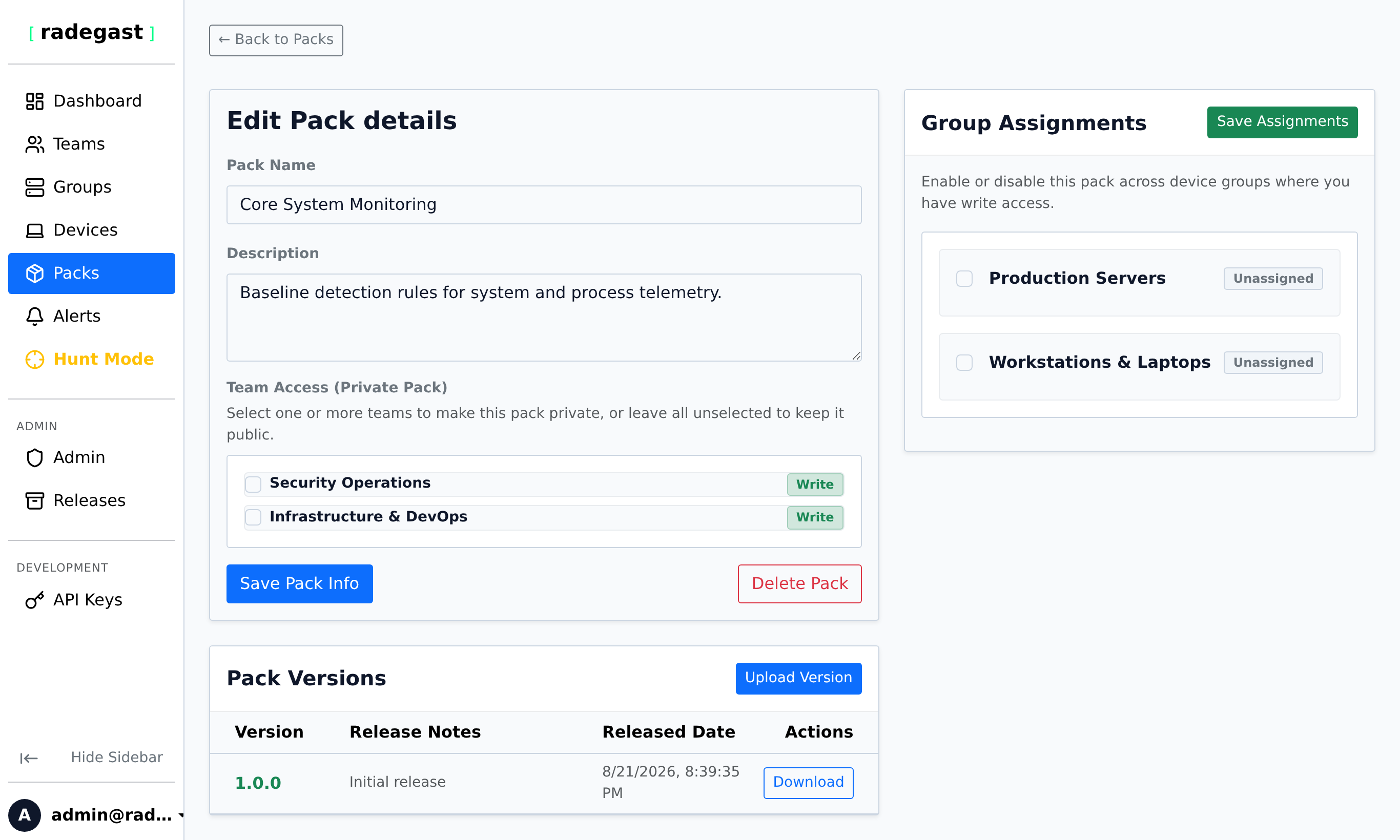
Click on a pack name in the Packs list
The details panel shows:
Basic information (name, ID, description)
Versions: All uploaded versions with timestamps and notes
Latest Version: The most recent version with download link
Teams: Teams that have access to this pack
Usage: Which devices/groups are using this pack
Actions: Buttons to upload new versions, edit metadata, or delete
Downloading Pack Content
Click on the pack
Find the version you want in the Versions list
Click the “Download” button for that version
The pack content will be downloaded to your computer
Editing Pack Metadata
Click on the pack
Click “Edit” or the edit icon
Modify any of these fields:
Pack name
Description
Teams that have access
Click “Save Changes”
Managing Team Access
Adding Teams to a Pack
Click on the pack
In the Teams section, click “Add Team”
Select the team from the list
Click “Add”
Note: The team must have pack read or write permissions to access the pack.
Removing Teams from a Pack
Click on the pack
In the Teams section, find the team you want to remove
Click the “Remove” or trash icon
Confirm the removal
Warning: Removing a team from a pack removes their access to all versions of that pack.
Deleting a Pack
Click on the pack
Click the “Delete” button
Confirm the deletion
The pack and all its versions will be removed
Warning: Deleting a pack cannot be undone. Devices using this pack may need to be reconfigured.
Note: Only users with admin role or maintainer role can delete public packs (packs without team restrictions).
Enabling/Disabling Packs for Devices
Packs are typically assigned to teams, and teams have access to device groups. However, you can also control which packs are enabled for specific devices:
Go to Devices page
Click on a device
In the details panel, find the Packs section
Toggle packs on/off for this device
Click “Save”
Tips & Validations
Pack ID: Must be unique. Once created, it cannot be changed.
Pack Name: Must be unique within your scope.
Versioning: Each upload creates a new version. Old versions are preserved.
Team Access: Teams with pack=read can view and download packs. Teams with pack=write can also create and delete packs.
Public Packs: Packs without team restrictions are visible to all users. Only Admins and Maintainers can create public packs.
File Types: Supported file types include YAML, TOML, JSON, and ZIP archives.
Size Limits: Individual pack uploads are typically limited to 50MB.
Tip: Use descriptive pack IDs like “malware-detection-v1” or “network-monitoring-production”
Tip: Start with a small set of detection rules and expand as you validate them.
Tip: Use the description field to document what the pack does, its version history, and any special requirements.
Tip: Test new pack versions on a small group of devices before widespread deployment.
Tip: Consider creating separate packs for different environments (Production, Development, Testing).
Troubleshooting
Can’t create a pack
Permission denied: You need pack write permissions (either through team membership or admin/maintener role)
Form validation: All required fields must be filled
Duplicate pack ID: A pack with that ID may already exist
Duplicate name: A pack with that name may already exist
Can’t upload pack content
File too large: The upload may exceed the size limit
Invalid file type: The file type may not be supported
Validation error: The pack content may not pass validation
Permission denied: You need write permissions on the pack
Can’t see any packs
No packs: Your organization may not have any packs created yet
Permission issue: You may not have pack read permissions on any teams
New user: Public packs should be visible to all users
Can’t download a pack
Permission denied: You need pack read permissions on the pack or its teams
File not found: The pack version may have been deleted
Public pack: Public packs should be downloadable by all authenticated users
Pack not working on devices
Not enabled: The pack may not be enabled for the device’s teams
Version mismatch: The device may be using an old version of the pack
Configuration error: The pack configuration may be invalid for your environment
Device not checking in: The device may not be communicating with the server
Can’t delete a pack
Permission denied: You need admin or maintainer role for public packs, or write permissions for team-restricted packs
In use: The pack may be in use by devices (though this doesn’t prevent deletion)
Pack not found: The pack may have already been deleted
Some alerts functionality requires Extended EDR
Note: Some alert triage features (like resolution status tracking) are only available when Extended EDR mode is enabled in your user settings.