Encryption Keys
Feature Overview
Encryption Keys are the foundation of Radegast EDR’s security model. All log data sent from devices to the backend is encrypted using age encryption, and only users with the corresponding private keys can decrypt and view the content. This ensures end-to-end encryption and protects your sensitive security data.
What Value Does This Feature Add?
End-to-End Encryption: Logs are encrypted on the device and can only be decrypted by authorized users
Data Privacy: Even if the backend database is compromised, your log data remains encrypted
User-Specific Access: Each user has their own key pair, controlling exactly who can see what
Key Management: Generate, store, and manage encryption keys securely
Recovery Options: Recover access to encrypted data if a key is lost
Step-by-Step Guide
Understanding the Encryption Model
Radegast EDR uses a public-key cryptography model:
Public Key: Stored on the server and shared with devices
Used to encrypt log data
Multiple users can share the same public key
Private Key: Stored only in your browser’s localStorage
Used to decrypt log data
Never transmitted to the server
Unique to each user
Encryption Flow:
Device encrypts logs with your public key
Encrypted logs are sent to and stored by the backend
You decrypt logs in your browser using your private key
Accessing Encryption Keys
Log in to your Radegast Console
Go to Settings > Encryption Keys or Keys section
The Encryption Keys page shows all your public/private key pairs
Understanding the Keys List
The Keys page shows:
Name: Descriptive name you assigned to the key pair
Public Key: The full public key (safe to share)
Created: When the key pair was generated
Active: Whether this is your currently active key for new devices
Default: Whether this is your default key for decryption
Actions: Buttons to manage the key
Creating a New Key Pair
First-Time Setup (New User)
When you first log in, you may not have any keys:
Go to Settings > Encryption Keys
You’ll see a warning: “No encryption keys found”
Click “Generate Key Pair” or “Create New Key”
The system will:
Generate a new public/private key pair using age encryption
Store the private key securely in your browser
Display the public key
Enter a name for this key pair (e.g., “My Main Key”, “Work Laptop”)
The key pair is created and becomes your default
Creating Additional Keys
Go to Settings > Encryption Keys
Click “Generate Key Pair” or “Add Key”
The system will generate a new key pair
Enter a name for this key
Choose whether to make it the active key for new devices
Click “Create”
Tip: You can have multiple key pairs. Each device uses one public key for encryption.
Making a Key Active
Only one key can be “active” at a time. The active key is used for:
New devices you create
New sessions
Click on the key in the list
Click “Set as Active”
Confirm the action
This key will now be used for new devices
Warning: Changing your active key means new devices will use the new public key. Old devices continue using their original public key.
Setting a Default Key for Decryption
You can have multiple key pairs stored, but only one is used as the default for automatic decryption:
Click on the key in the list
Click “Set as Default”
This key will be tried first when decrypting logs
Viewing Key Details
Click on a key in the list
The details panel shows:
Full public key
Creation timestamp
Whether it’s active and/or default
Associated devices (devices using this public key)
Deleting a Key Pair
Click on the key in the list
Click the “Delete” button
You’ll see a warning: “Any logs encrypted using this key will become permanently unreadable unless you have a backup of the key. This action cannot be undone.”
Confirm the deletion
Warning: If you delete a key pair that’s being used by devices, you will NOT be able to decrypt those devices’ logs anymore (unless you have another copy of the private key).
Important: You cannot delete your last key pair. Ensure you have at least one key before deleting another.
Key Recovery
If you lose access to your private key (e.g., browser cleared, new device), you have two recovery options:
Option 1: Using a Recovery Key
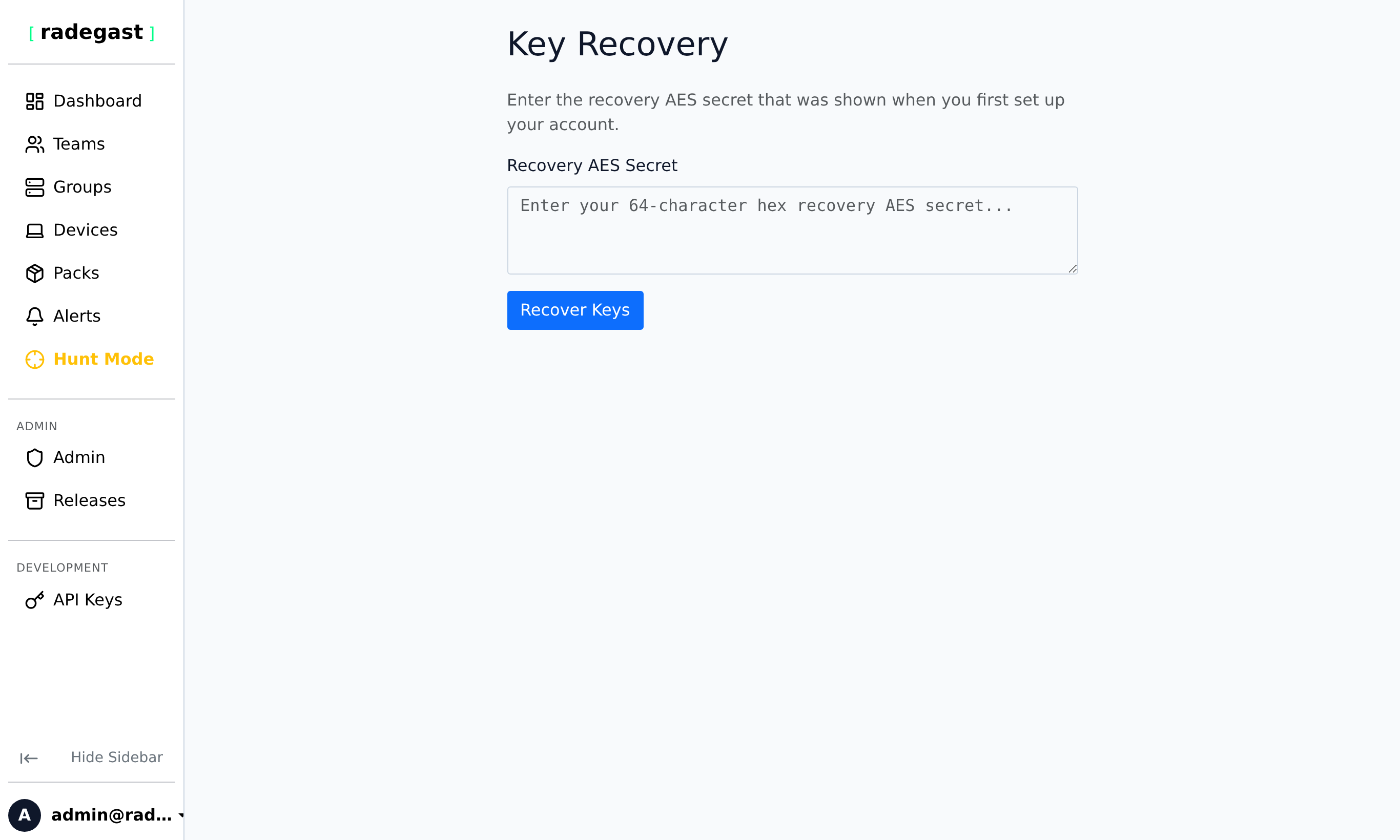
If you have a recovery key for the key pair:
Go to Keys > Recovery in the navigation
Enter your Recovery Key (the 64-character hex string)
The system will decrypt your stored encrypted private key
Your private key will be restored to browser storage
Note: The recovery key is generated when you first create a key pair and choose the recovery option.
Option 2: Key Transfer from Another Browser
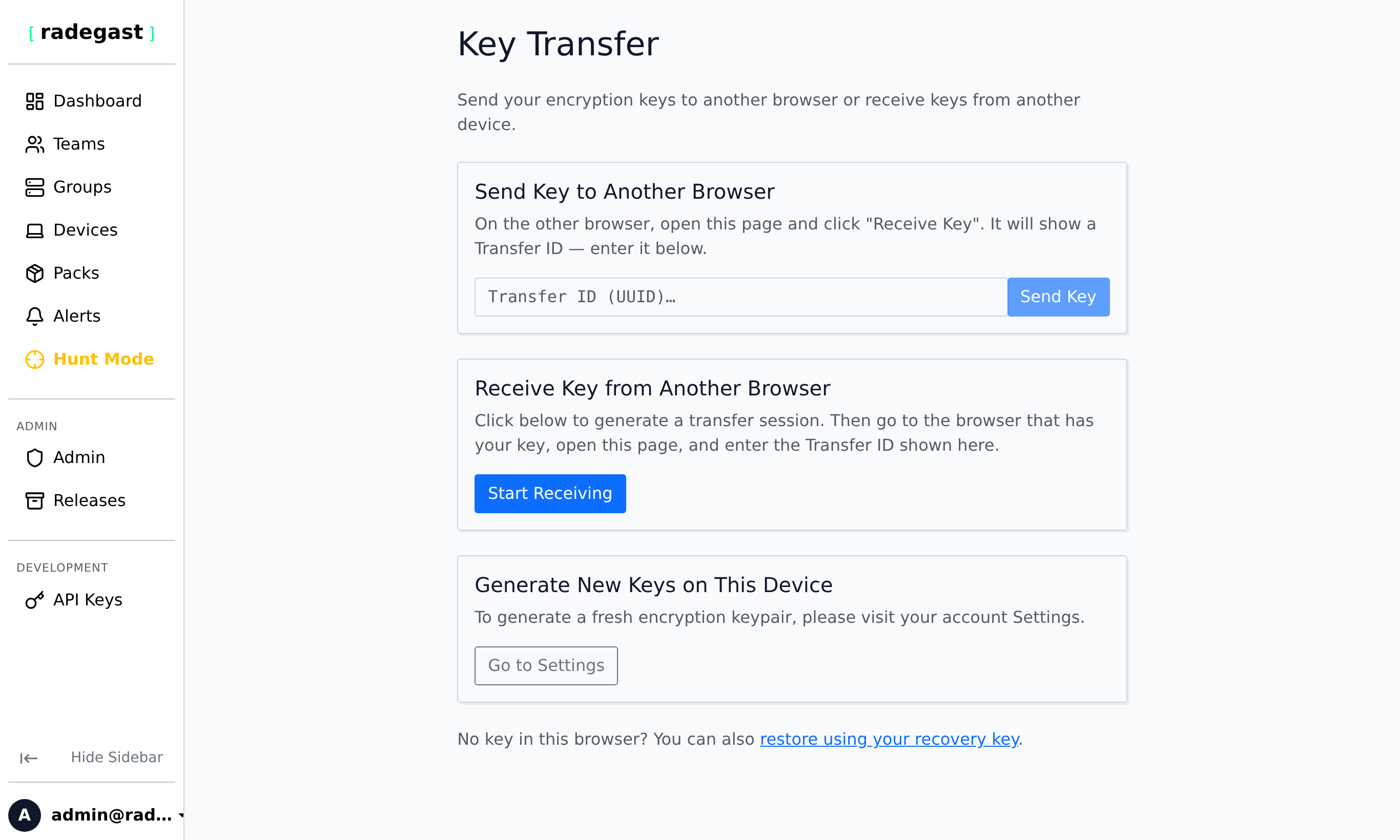
If you have your private key stored in another browser:
Go to Keys > Transfer in the navigation
On your source browser (where the key is stored), copy the Key Transfer Token
This is found in Settings > Encryption Keys > Transfer tab
On your target browser, paste the transfer token
The private key will be securely transferred and stored
Security: Transfer tokens are one-time-use and expire after a short period.
Generating a Recovery Key
When creating a new key pair, you have the option to generate a recovery key:
During key creation, check “Generate Recovery Key” or similar option
The system will generate a 256-bit AES key in hexadecimal format
IMPORTANT: Copy this recovery key and store it securely
This is the ONLY time you can see it
Store it in a password manager or printed copy in a safe location
Without this, you cannot recover your private key if lost
The system will encrypt your private key with this AES key and store the encrypted version
Your actual private key is still only stored in your browser
Tip: The recovery key is separate from your private key. It’s used to decrypt the encrypted backup of your private key.
Exporting a Private Key
Not Recommended: Private keys should never leave your browser. However, if absolutely necessary:
Go to Settings > Encryption Keys
Click on the key you want to export
Look for “Export Private Key” option (may be hidden or disabled)
You’ll see a warning about security implications
Copy the private key to a secure location
Warning: Exporting private keys significantly reduces security. Only do this if you have a compelling reason and proper security controls.
Tips & Validations
Key Storage: Private keys are stored in your browser’s localStorage, which is per-browser and per-device
Browser Sync: Private keys do NOT sync across browsers or devices automatically
No Server Storage: Your private key never goes to the server - it stays in your browser
age Encryption: Radegast uses the age encryption standard, which is based on ChaCha20-Poly1305 and X25519
Multiple Keys: You can have many key pairs, each with its own public and private key
Device-Specific: Each device uses one public key, but you can change which key a device uses
Tip: Generate a recovery key for each key pair and store it securely. This is your only backup option.
Tip: Name your key pairs descriptively (e.g., “Main Work Laptop”, “Backup Key”, “Old Server Key”)
Tip: If you use multiple browsers or devices, use the Transfer feature to share keys between them.
Tip: The recovery key is a 64-character hexadecimal string (256 bits). Store it securely.
Tip: If you clear your browser data, you’ll lose your private keys. Always have a recovery plan.
Tip: You can have devices using different public keys. The system will try all your private keys when decrypting.
Troubleshooting
No private key found / Can’t decrypt logs
Browser cleared: Your browser’s localStorage may have been cleared
New device: You’re using a new browser or device without the key
Private browsing: Private/incognito mode may not have access to stored keys
Solution: Use Key Recovery or Key Transfer to restore your key
“Private Key Not Found” warning on dashboard
No keys: You may not have any keys created
Keys not loaded: The system may not have loaded your keys yet
Solution: Go to Settings > Encryption Keys and create or recover a key
Recovery key doesn’t work
Wrong key: You may be using the wrong recovery key
Formatting: Ensure the key is exactly 64 hexadecimal characters (0-9, a-f)
Corrupted: The encrypted private key backup may be corrupted
Already used: Recovery keys can typically be used multiple times
Transfer token doesn’t work
Expired: Transfer tokens may expire after a short time (e.g., 5-10 minutes)
Already used: Transfer tokens are typically one-time-use
Wrong browser: Ensure you’re copying from the source browser where the key is stored
Network issues: The transfer requires network connectivity
Can’t create a key pair
Browser issue: Your browser may not support the required Web Crypto API
Storage full: localStorage may be full
Private mode: Some browsers block localStorage in private mode
Solution: Try a different browser or clear localStorage
Logs show as encrypted
Missing key: You may not have the private key corresponding to the public key used by the device
Wrong user: You may not be the user who created the device
Key deleted: The key pair may have been deleted
Solution: Ensure you have the correct private key, or ask the device creator to share their public key with you
Multiple keys causing confusion
Too many keys: Having many key pairs can make management difficult
Decryption order: The system tries keys in order (default first, then others)
Solution: Delete unused key pairs and consolidate to fewer keys