User Administration (Admin)
Feature Overview
The Admin panel provides global management capabilities for Radegast EDR administrators. Here, admin users can manage all users, devices, and packs across the entire system, regardless of team permissions. This is the central control point for system-wide operations.
What Value Does This Feature Add?
Global User Management: Add, edit, and remove users across the entire system
System-Wide Device Control: View and manage all devices, not just those in your teams
Comprehensive Pack Management: Access and control all detection packs
Password Recovery: Reset passwords for users who are locked out
Emergency Access: Admin-only actions for critical situations
Step-by-Step Guide
Note: Only users with the Admin role can access the Admin panel. If you don’t see the Admin option in your navigation, you don’t have admin privileges.
Accessing the Admin Panel
Log in to your Radegast Console with an admin account
Click “Admin” in the main navigation menu
The Admin panel will display with several tabs or sections
Understanding the Admin Dashboard
The Admin panel typically includes:
Users: List of all registered users
Devices: List of all registered devices
Packs: List of all detection packs
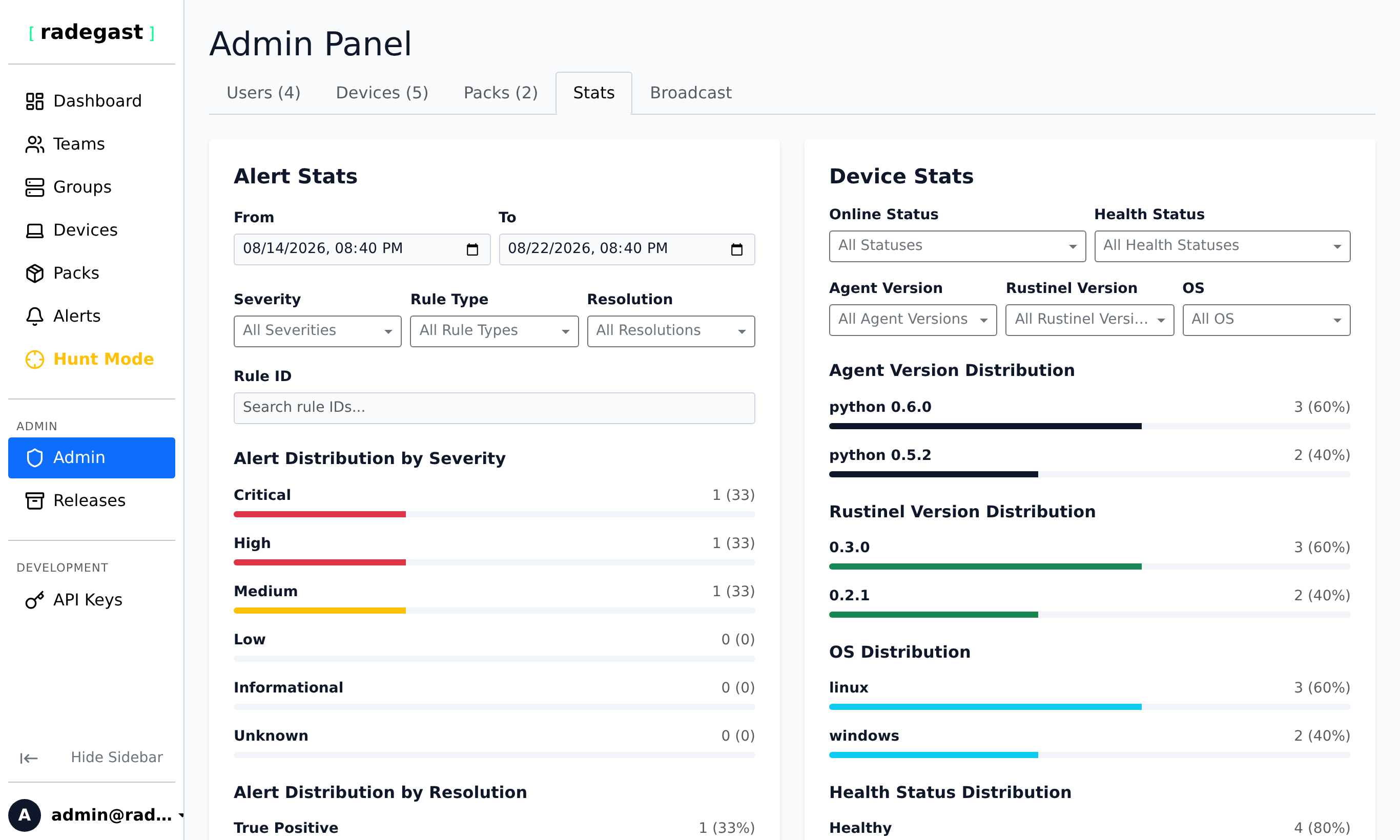
Stats: Global statistics including alert distribution by severity, resolution, rule ID, and rule type, as well as device stats covering agent version, Rustinel version, OS, health status, and online status distributions.
Viewing Admin Stats
In the Admin panel, click “Stats”
The page displays two main panels:
Alert Stats: Displays alert distribution by severity, resolution, rule ID, and rule type. You can filter the statistics by selecting a custom From and To date-time range, as well as multi-select dropdown filters for Severity, Rule Type, and Resolution, and search by Rule ID.
Device Stats: Shows endpoint distributions by Agent Version, Rustinel Version, OS, Health Status, and Online Status. You can filter the statistics with multi-select dropdown filters:
Online Status: Filter by
OnlineorOfflinedevices.Health Status: Filter by
Healthy,Unhealthy, orUnknowndevice health.Agent Version: Filter by specific agent versions.
Rustinel Version: Filter by specific Rustinel versions.
OS: Filter by specific operating systems.
Managing Users
Viewing All Users
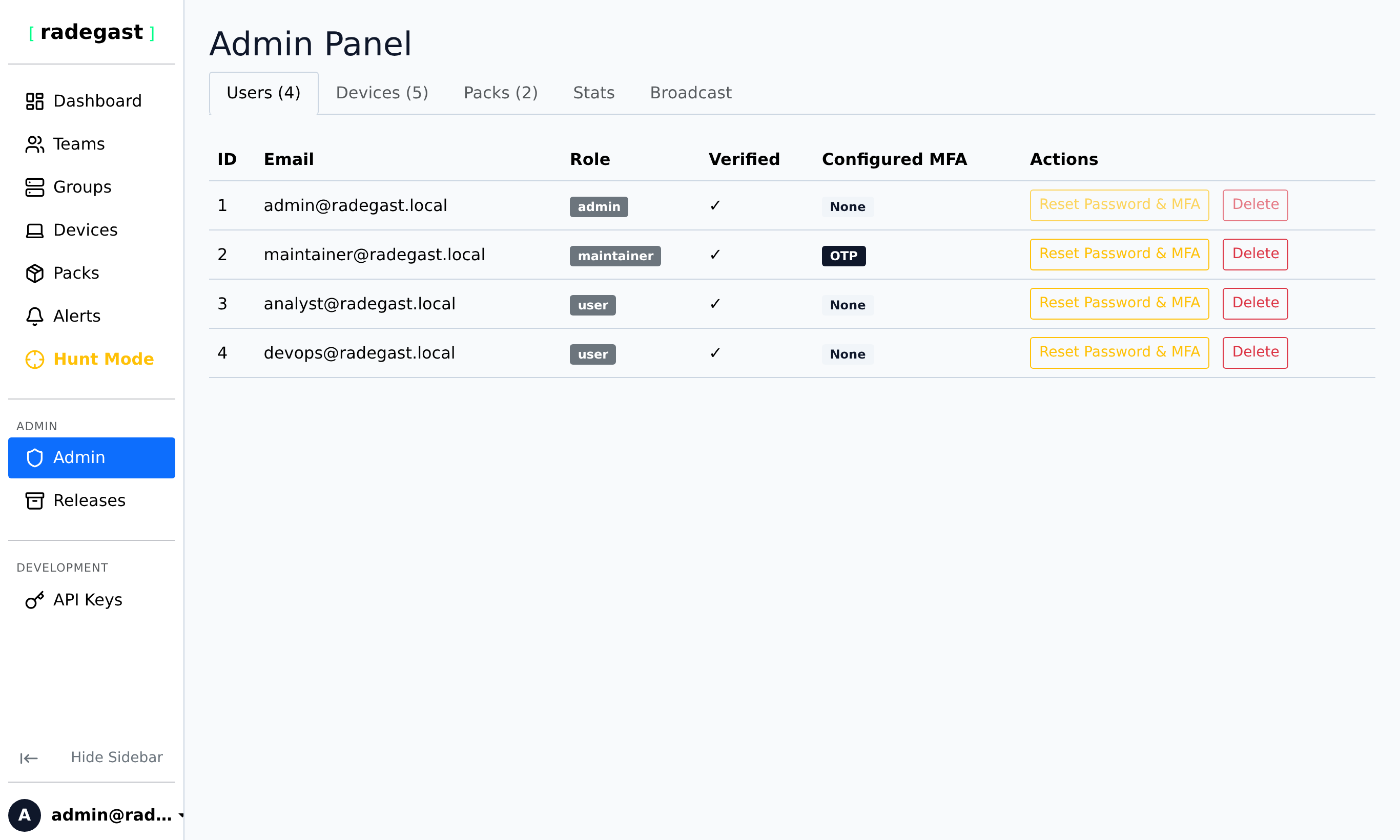
In the Admin panel, click “Users”
The Users list shows:
User email
Role (Admin, Maintainer, User)
Verification status
MFA setup status
Extended EDR enabled flag
API keys enabled flag
Last login
Actions available
Understanding User Roles
Admin: Full access to all features and data. Can manage users, devices, and system settings.
Maintainer: Can create public packs and manage system-level configurations. Cannot manage users.
User: Regular user with access based on team permissions.
Viewing User Details
Click on a user in the list
The details panel shows:
Basic information (email, role, when created)
Verification status
MFA configuration status
Number of public keys
Has keys flag (encryption keys)
MFA required level vs configured level
Extended EDR status
API keys enabled status
Team memberships
Device access
Resetting a User’s Password
Click on the user in the list
Click “Reset Password” or “Change Password”
Confirm the action
A new random password will be generated
The user’s MFA settings will be cleared (OTP and hardware tokens removed)
An email with the new password will be sent to the user
The user will be prompted to set up a new password and MFA on next login
Note: This is useful for users who have lost access or when onboarding new users who can’t complete registration.
Deleting a User
Click on the user in the list
Click the “Delete” button
Confirm the deletion
The user and all their data (devices, keys, settings) will be removed
Warning: Deleting a user cannot be undone. Consider disabling their account instead if temporary.
Note: You cannot delete yourself.
Managing All Devices
Viewing All Devices
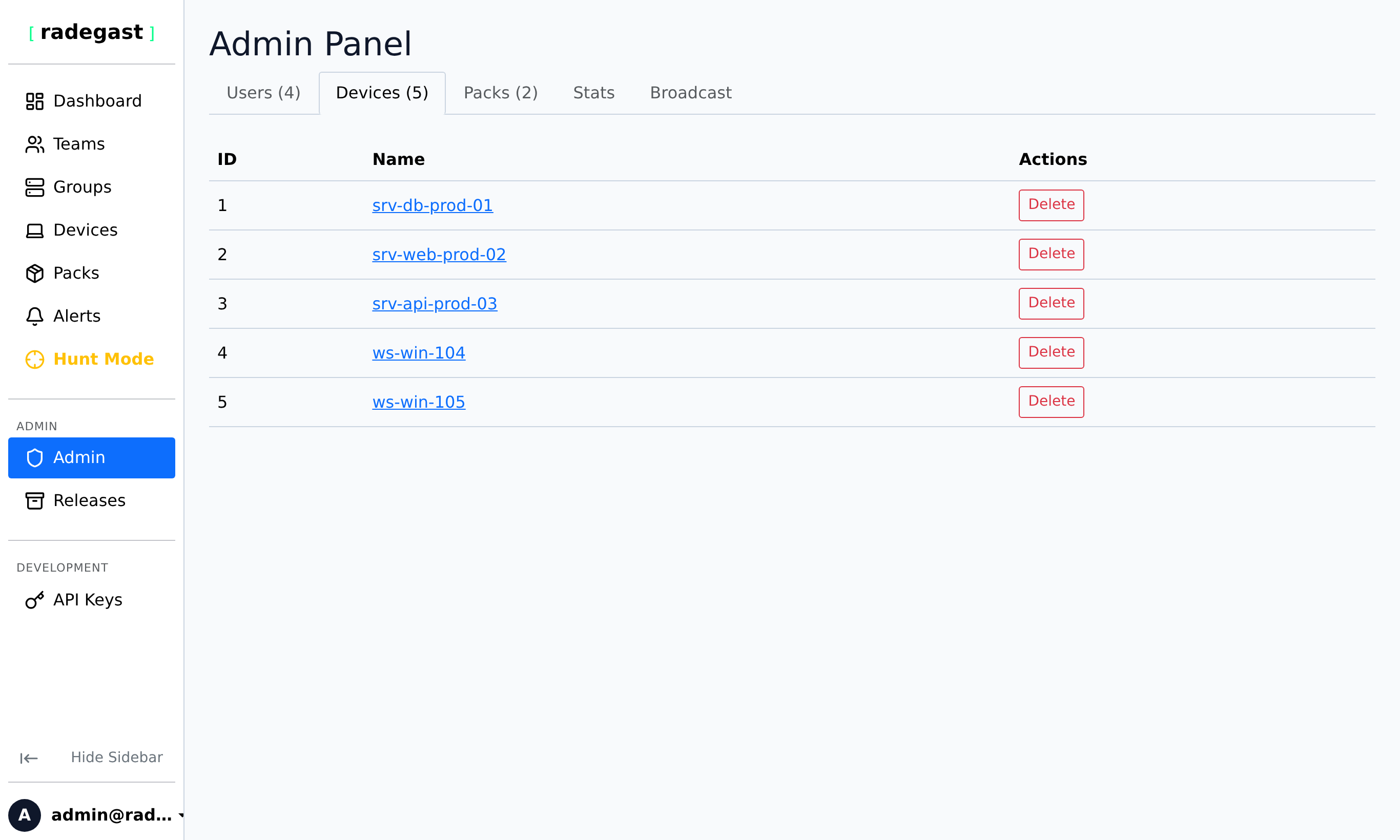
In the Admin panel, click “Devices”
The Devices list shows ALL devices in the system, not just those in your teams
An overview summary indicates the total database space consumed across all registered devices.
Each device shows:
Device name
Total database space used by its ingested alerts and telemetry logs
Actions available (such as device deletion)
Deleting a Device
Click on the device in the list
Click the “Delete” button
Confirm the deletion
The device will be removed from the system
Note: This is a system-wide deletion. The device cannot be recovered.
Managing All Packs
Viewing All Packs
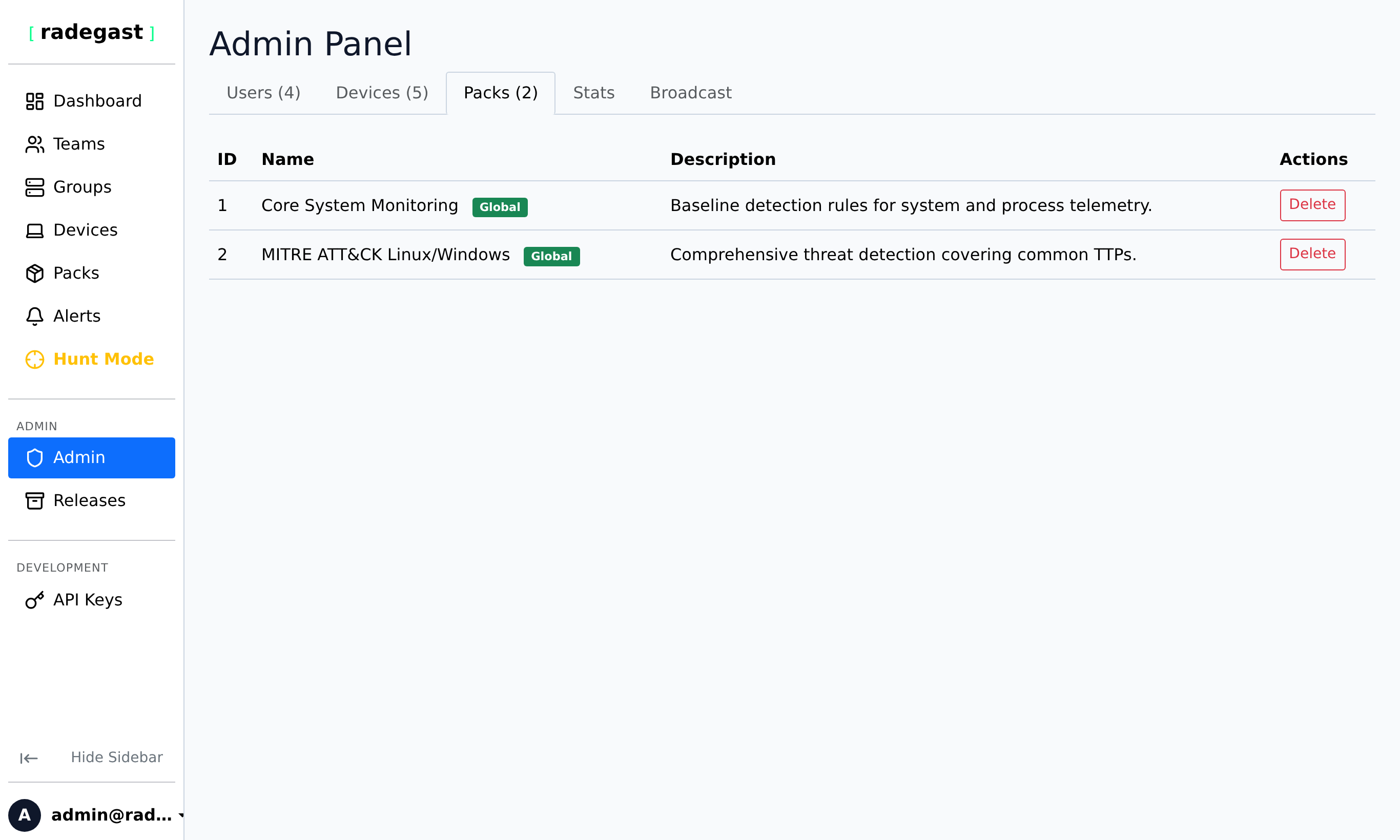
In the Admin panel, click “Packs”
The Packs list shows ALL detection packs in the system
Each pack shows:
Pack name and ID
Creator
Teams with access
Versions
Description
Sending Broadcast Emails
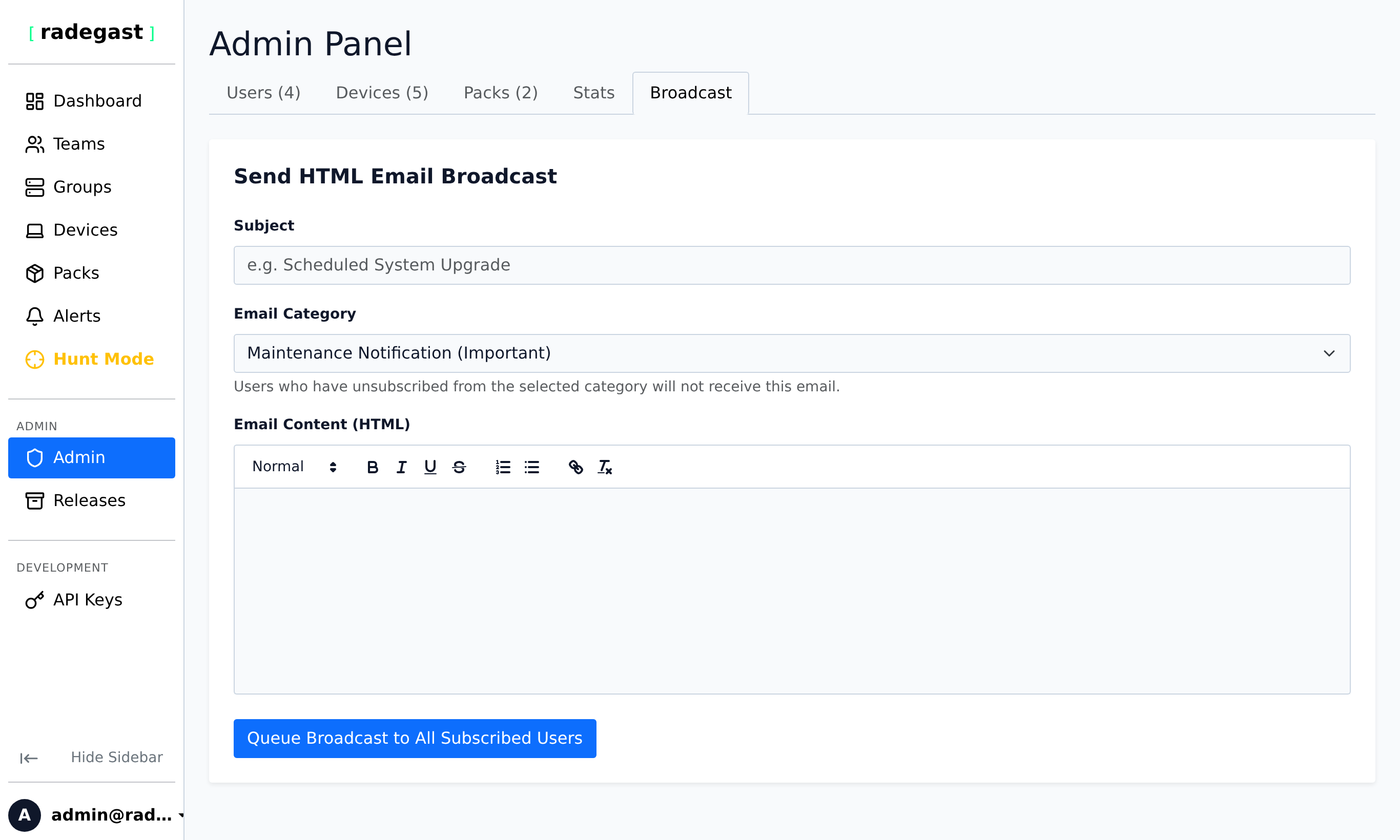
Administrators can broadcast announcements and maintenance notices directly to all subscribed platform users from the Broadcast tab.
Deleting a Pack
Click on the pack in the list
Click the “Delete” button
Confirm the deletion
The pack and all its versions will be removed from disk
Note: Deleting a pack may cause issues for devices that were using it. The pack files are also deleted from the server.
User MFA Status
The Admin panel shows MFA setup status for each user:
MFA Required Level: What level of MFA the user’s role requires (based on settings)
MFA Configured Level: What MFA the user actually has set up
Setup Missing: Indicates if the user’s MFA setup doesn’t meet requirements
Common Scenarios:
Admin role requires hardware token, but user only has OTP configured
User role requires OTP, but user has no MFA configured
User has the required level configured (status is OK)
Tips & Validations
Admin Access: Admin role is required for all Admin panel actions. There’s no “partial admin” - it’s all or nothing.
Audit Trail: Admin actions are logged. Be mindful of the changes you make.
System Impact: Admin actions can affect the entire platform. Test changes in non-production first when possible.
User Privacy: Admin users can see all user information, including email addresses and MFA status.
Emergency Recovery: The password reset feature is powerful for recovering locked-out accounts.
Tip: Regularly review the Users list to ensure only authorized users have access.
Tip: Check MFA setup status to ensure all users meet security requirements.
Tip: Use the Device list to identify offline or problematic endpoints across the entire system.
Tip: The Packs list helps you understand what detection capabilities are deployed and by whom.
Tip: Consider having at least two admin users for redundancy.
Troubleshooting
Can’t access Admin panel
Not an admin: Your user role may not be Admin. Contact another admin.
Permission issue: There may be a system configuration issue
URL issue: Ensure you’re using the correct URL path (/admin)
Can’t see all users/devices/packs
Filter active: Check if there’s a search or filter applied
Pagination: You may need to navigate to other pages to see all items
Loading issue: Try refreshing the page
Can’t reset user password
Permission denied: You must be an admin
Own account: You cannot reset your own password through the Admin panel (security measure)
Email issue: The system may not be configured to send emails
Can’t delete a user/device/pack
Permission denied: You must be an admin
Dependencies: The item may have dependencies that prevent deletion
Self-deletion: You cannot delete your own user account
Already deleted: The item may have already been removed
User can’t log in after password reset
Email not received: Check spam folder or email configuration
MFA cleared: The user needs to set up MFA again after password reset
Temporary password expired: The reset password may have a time limit
User not verifying: The user may need to verify their email if it wasn’t verified before