Device Installation
Feature Overview
Installing the Radegast agent on your endpoints is the critical step that enables security monitoring. The agent collects system events, applies detection rules, and sends encrypted logs to the Radegast backend for your review. This guide provides OS-specific instructions for installing and configuring the agent.
Step-by-Step Guide
Prerequisites
Before installing the agent:
You have created a device in the Radegast Console
Your endpoint meets the minimum requirements:
Linux: Kernel 4.18+, glibc 2.31+, x86_64 or ARM64
Windows: Windows 10/11 or Windows Server 2019+, x86_64
macOS: macOS 11+, Apple Silicon (M1/M2) or Intel
Your endpoint has network connectivity to the Radegast backend URL
You have administrative/sudo access on the endpoint
Linux Installation
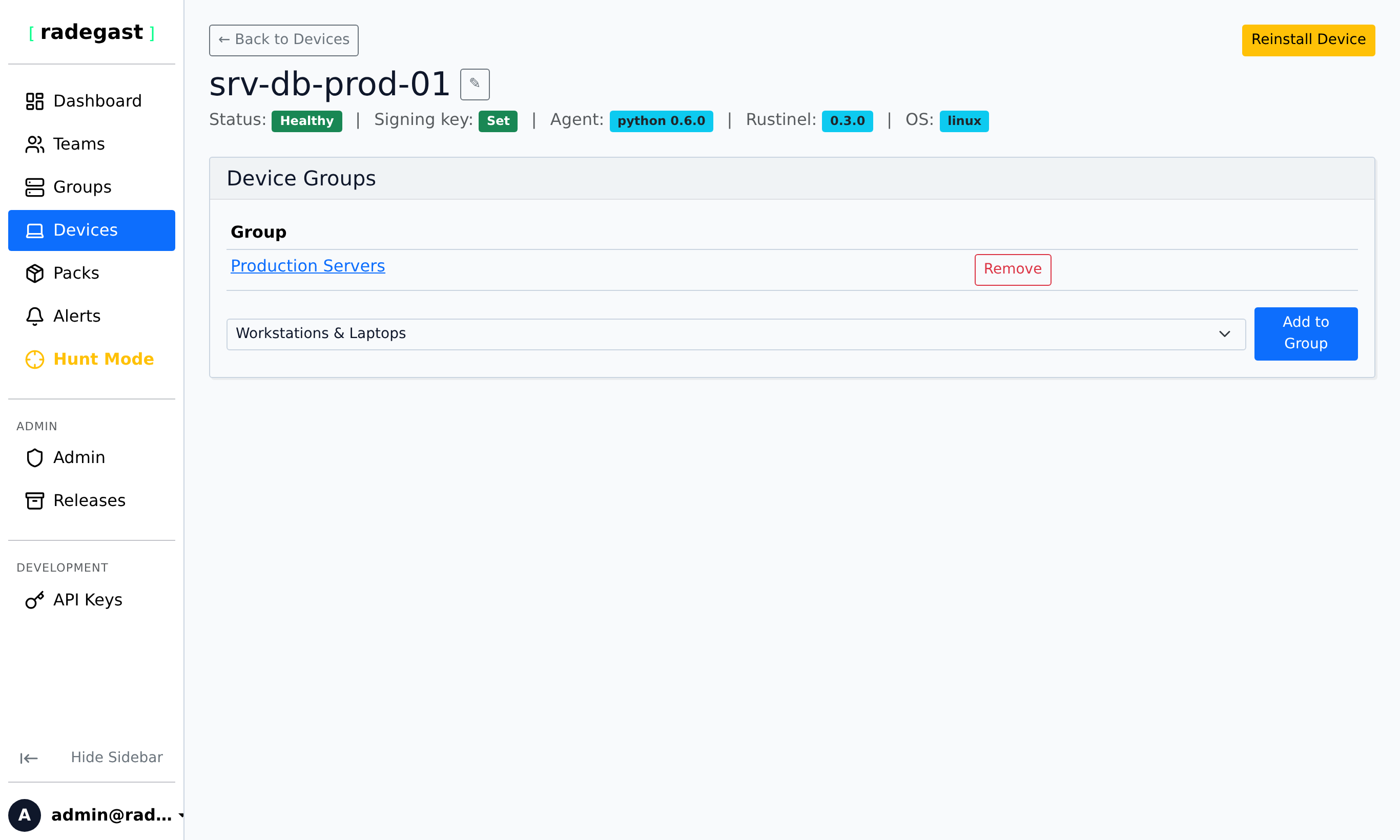
In the Radegast Console, go to Devices
Click on your device, or go to the Install page
Select Linux as the OS
Select your architecture (amd64 for Intel/AMD, arm64 for ARM)
Copy the single-line installation command provided
Run the command on your Linux endpoint as root
The command will automatically:
Install required dependencies
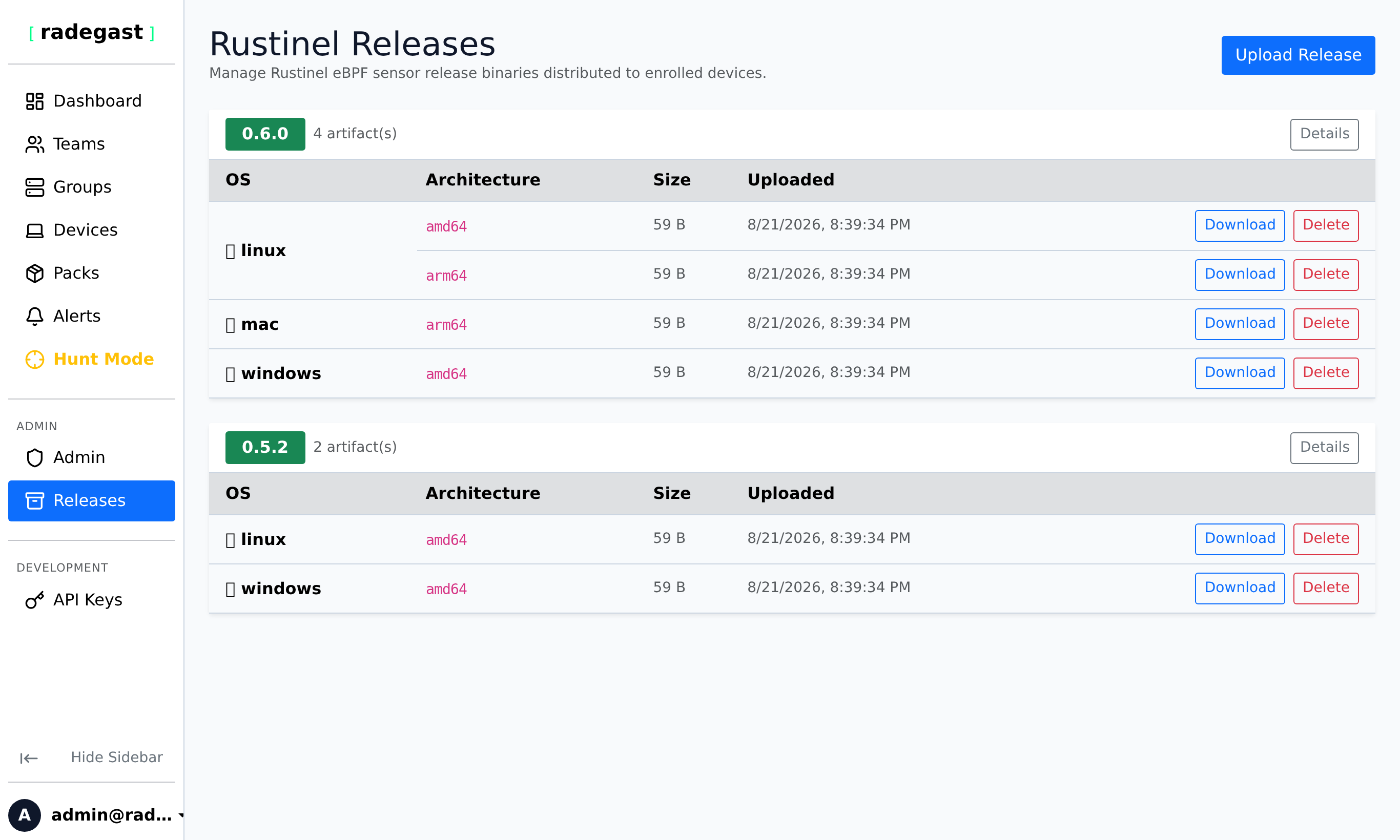
Download and install the latest agent from the Releases catalog
Configure the agent with your token
Set up systemd services
Start the agent automatically
Windows Installation
Automatic Installation (Recommended)
In the Radegast Console, select Windows as the OS
Select amd64 as the architecture
Copy the single-line installation command (PowerShell) provided
Run the command on your Windows endpoint as Administrator
The command will automatically:
Download and install the agent
Configure the service
Start the agent automatically
Verify the service:
Open Services (services.msc)
Look for Radegast EDR Agent service
Ensure it’s running and set to Automatic startup
macOS Installation (Experimental)
In the Radegast Console, select macOS as the OS
Copy the single-line installation command provided
Run the command on your macOS endpoint as root
Install isolated
uvand managed Python runtime (withpkg-configsupport for native extensions)Download and install the latest agent (runs as
_radegast)Download the signed Rustinel binary from console releases (runs as root)
Configure the agent with your token
Set up launchd daemons (
app.radegast.agentandio.rustinel.daemon)Start the agent automatically
Post-Install: Grant Full Disk Access
After installation, you must grant Full Disk Access to Rustinel for telemetry collection:
Open System Settings -> Privacy & Security -> Full Disk Access
Grant access to
/Library/Radegast/rustinel/Rustinel.app(or/Library/Radegast/rustinel/rustinel)Restart the Rustinel daemon:
sudo launchctl kickstart -k system/io.rustinel.daemon
Post-Installation Steps
Verify in Console:
Go to Devices in the Radegast Console
The status indicator shows online
Configure Detection Packs (optional):
Assign appropriate detection packs to your device’s groups
This customizes what the agent monitors for
Tips & Validations
Token Security: Never commit your device token to version control or share it publicly
File Permissions: Configuration files should be readable only by the agent user (chmod 600)
Network Requirements: The agent requires outbound HTTPS access to your Radegast backend
Port Requirements: Outbound port 443 (HTTPS) must be open
Disk Space: Ensure at least 100MB of free disk space for agent operations
Memory: The agent typically uses 50-100MB of RAM
CPU: Minimal CPU usage, but detection rules may increase resource consumption
Tip: Use the automatic installation commands whenever possible - they handle most configuration automatically.
Tip: Test your configuration in a non-production environment first.
Tip: Monitor the agent’s local logs for any errors during startup. Log locations vary by OS and configuration.
Tip: If you need to change the device token after installation, update the config file and restart the agent service.
Troubleshooting
Agent fails to start
Check logs: Look at the agent’s log file for error messages
Verify token: Ensure the device token in the config file is correct
Check permissions: The agent may need permission to read its config file or write to log directories
Missing dependencies: On Linux, ensure required libraries (libssl) are installed
Corrupted download: Re-download the agent binary
Agent starts but can’t connect
Verify URL: Ensure the backend_url in config.toml is correct
Network connectivity: Test if the endpoint can reach the backend with curl or similar
Firewall: Check that outbound HTTPS (port 443) is allowed
Proxy: If behind a proxy, you may need to configure proxy settings
DNS: Ensure DNS resolution is working on the endpoint
Device shows as offline in Console
Service not running: Check that the agent service is actually running
Token mismatch: The token in the config may not match what’s in the database
Time synchronization: Ensure the endpoint’s clock is synchronized with NTP
Backend URL: Verify the URL doesn’t have a trailing slash
Certificate issues: If using self-signed certs, you may need to configure the agent to trust them
High CPU or Memory usage
Check for crashes: The agent may be in a crash loop - check logs
Reduce detection rules: If using many detection packs, consider reducing the complexity
Update agent: Ensure you’re running the latest version
Resource limits: The agent may need resource limits adjusted in its service configuration
Logs aren’t appearing in Console
Agent not connected: Verify the agent is online in the Devices list
Encryption issues: Ensure your public/private key pair is properly configured
Permission issues: Your user may not have permission to view logs from this device’s groups
Filtering: Check if the logs are being filtered out by your alert preferences
“Invalid token” error
Token already used: Each token can only be used once
Token expired: If the device was reinstalled in the Console, the old token is invalid
Copied incorrectly: Ensure the entire token was copied without spaces or line breaks
Character issues: Some characters may be confused (0/O, l/1, etc.)
Installation script fails
Missing dependencies: The script may require curl, wget, or other tools
Permission denied: Run the script as administrator/root
Unsupported OS: Verify your OS and architecture are supported
Network issues: The script needs internet access to download the agent