Hunt Mode
Feature Overview
Hunt Mode is an advanced feature in Radegast EDR that allows you to query encrypted raw telemetry across your entire fleet of devices. This powerful tool enables security analysts and investigators to search through historical data, identify patterns, and hunt for threats that may have gone unnoticed.
Important: Hunt Mode is only available when Extended EDR mode is enabled for your account.
What Hunt Mode Provides
Cross-device querying: Search across all your devices’ telemetry simultaneously
JSONata queries: Use the powerful JSONata query language to filter and transform data
Raw telemetry access: Query the encrypted raw event data
Time-based filtering: Search within specific date/time ranges
Historical investigation: Access past events for forensic analysis
Prerequisites
Extended EDR mode must be enabled in your user settings
You must have your encryption keys properly configured to decrypt the results
You need appropriate permissions to access the device data
Step-by-Step Guide
Accessing Hunt Mode
Log in to your Radegast Console
Click “Hunt” in the main navigation menu
If Extended EDR mode is not enabled, you’ll be prompted to enable it in your settings
Understanding the Hunt Interface
The Hunt Mode page includes:
JSONata Text Query: Input field for your search query
Start Time: Date/time picker for the beginning of your search range
End Time: Date/time picker for the end of your search range
Search / Stop Button: Execute your query or interrupt a search in progress
Search Progress: Displays dynamic progress including page number, events fetched, earliest fetched timestamp, and latest fetched timestamp
Results Display: Shows matching events as they are fetched and decrypted
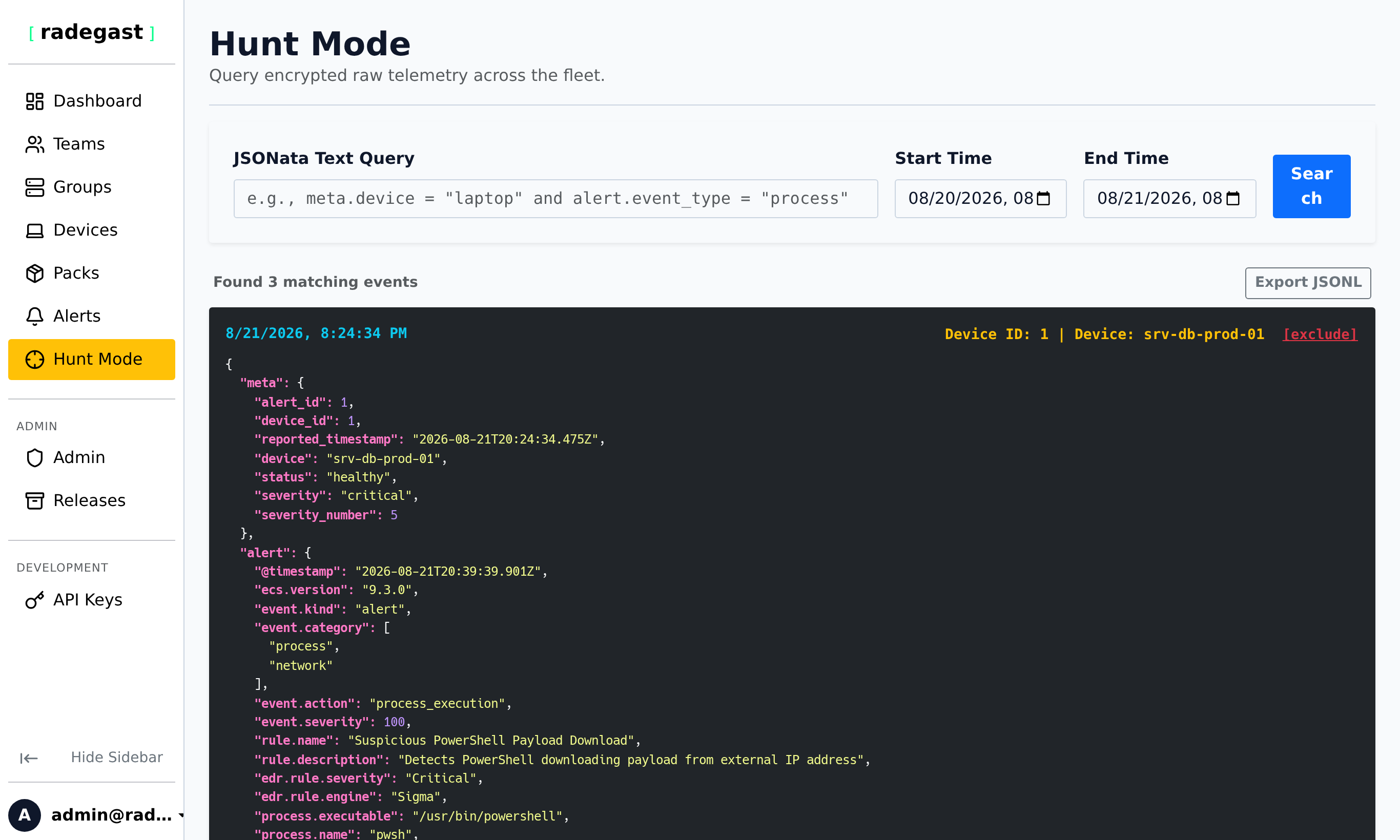
Creating a Basic Query
Set your time range:
Click the calendar icons for Start Time and End Time
Select the date range you want to search (default is typically the last 15 minutes)
Enter your JSONata query:
meta.device = "laptop" and alert.event_type = "process"
This query finds all process-related alerts from devices with “laptop” in their name.
Click the Search button to execute the query. As pages of telemetry are fetched dynamically, matching results are shown immediately, and you can click Stop at any time to halt further queries while keeping all events fetched so far.
Common Query Examples
Query |
Description |
|---|---|
|
Find all critical severity alerts |
|
Find alerts from devices with “server” in the name (case-insensitive) |
|
Find all network-related events |
|
Find alerts that have a file_name field |
|
Find alerts with process ID greater than 1000 |
`meta.device = “web-prod-01” and severity ~> /high |
critical/` |
Viewing Results
After executing a query:
Matching events are displayed in the results table
Each result shows:
Timestamp
Device name
Event details
Severity (if available)
Encrypted content is automatically decrypted if you have the appropriate private key
Click on any result to view full details in JSON format
Working with Encrypted Data
Automatic decryption: If you have your private key stored in the browser, results will be automatically decrypted
Missing keys: If content cannot be decrypted, it will be shown as encrypted
Key management: Ensure you have all necessary keys imported in your Settings > Encryption Keys
Advanced Querying
JSONata Query Language
JSONata is a powerful query and transformation language for JSON data. Some useful operators:
=: Equals~=: Regular expression match>,>=,<,<=: Comparison operatorsand,or: Logical operators$exists(): Check if a field exists$length(): Get length of array or string$contains(): Check if array contains value
Example: Complex Threat Hunting
Find suspicious process executions:
alert.event_type = "process" and (
  alert.process_name ~> /powershell|cmd|bash|sh/ or
  alert.process_path ~> /temp|downloads|appdata/
)
Example: Lateral Movement Detection
Find network connections to unusual ports:
alert.event_type = "network" and alert.dest_port > 1024
Tips
Start with simple queries and build complexity gradually
Use the time range filters to narrow down your search scope
JSONata queries are case-sensitive by default; use
~>for case-insensitive matchingTest your queries on a small time range first before searching large datasets
Save useful queries for future reference
Combine multiple conditions with
and/orfor precise filtering
Troubleshooting
No results returned
Query syntax error: Check your JSONata syntax for errors
No matching data: Try broadening your query criteria or time range
Case sensitivity: Try using case-insensitive matching with
~=Data availability: Ensure devices were active and reporting during the selected time range
Hunt Mode not available
Extended EDR disabled: You must enable Extended EDR mode in your Settings
Permission issue: Contact your administrator to verify your permissions
Browser issue: Try refreshing the page or clearing browser cache
Results are encrypted
Missing private key: Go to Settings > Encryption Keys and ensure you have the correct keys
Wrong key: You may need to recover or transfer your encryption keys
Browser storage: Try a different browser where you have your keys stored
Query is slow
Large time range: Narrow down your time range to improve performance
Complex query: Simplify your JSONata expression
Many devices: Consider filtering by specific devices first
JSONata syntax errors
Invalid operators: Review JSONata documentation for correct syntax
Unclosed parentheses: Ensure all parentheses are properly matched
Field names: Verify the field names match your actual data structure