Multi-Factor Authentication (MFA)
Feature Overview
Multi-Factor Authentication adds an extra layer of security to your Radegast EDR account by requiring more than just a password for login. After entering your password, you’ll need to provide a second form of verification using one of the supported MFA methods: One-Time Passwords (OTP), Hardware Security Tokens, or WebAuthn (biometric or device-based authentication).
What Value Does This Feature Add?
Enhanced Security: Protect your account even if your password is compromised
Compliance: Meet regulatory requirements for strong authentication
Flexible Options: Choose from multiple MFA methods based on your needs
Role-Based Requirements: Different user roles can have different MFA requirements
Phishing Protection: MFA makes phishing attacks much more difficult
Step-by-Step Guide
Understanding MFA Methods
Radegast EDR supports three MFA methods:
OTP (One-Time Password): Time-based codes generated by apps like Google Authenticator, Authy, or Microsoft Authenticator
Hardware Security Token: Physical or virtual security keys that support FIDO2/WebAuthn (e.g., YubiKey)
WebAuthn: Browser-based biometric or device authentication (fingerprint, face ID, platform authenticators)
Setting Up MFA
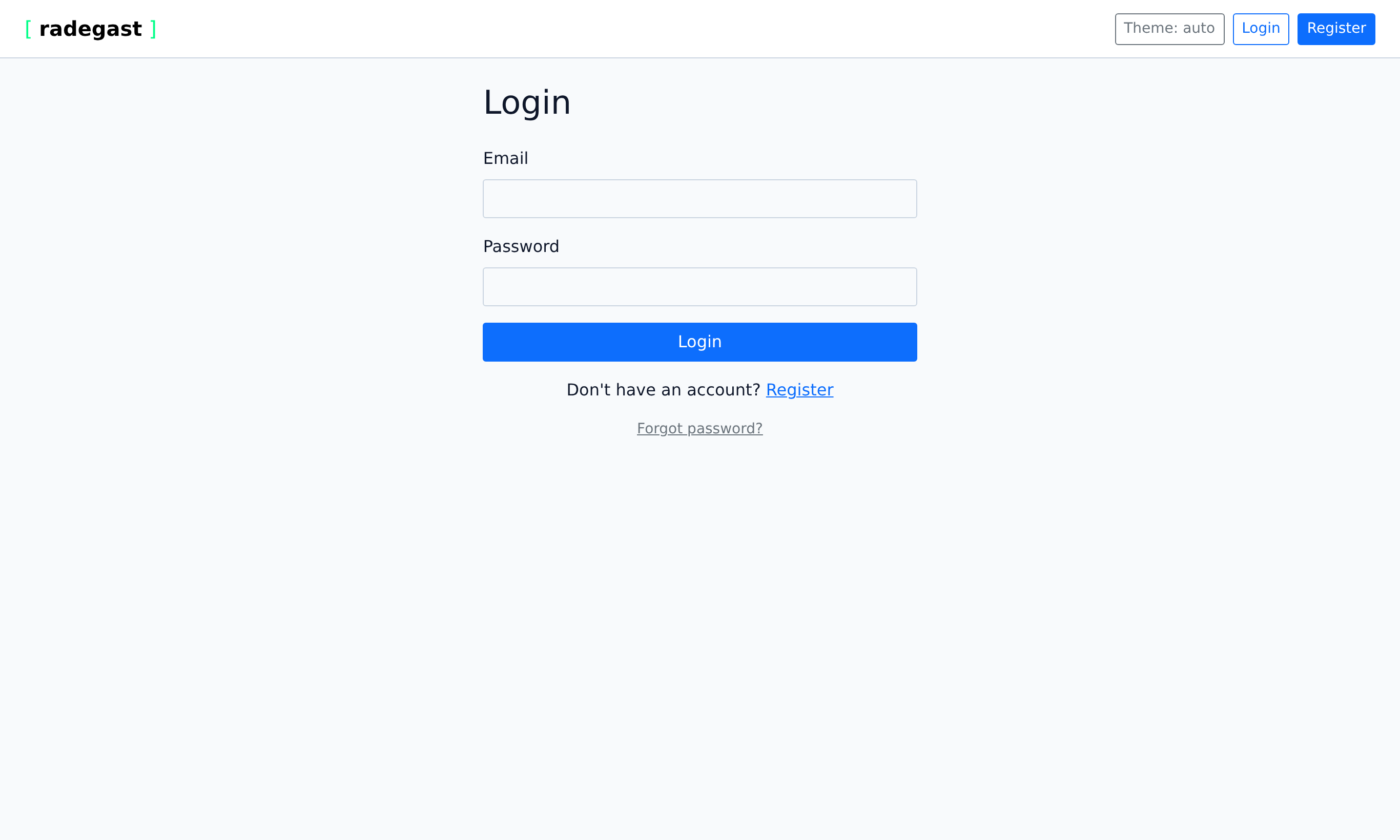
When you first log in, or when MFA is required for your role, you’ll be prompted to set up MFA.
Step 1: Initial Login
Enter your email and password
Click “Login”
If MFA is required, you’ll see a message: “MFA Required”
You’ll be asked to choose an MFA method
Step 2: Choose MFA Method
Select one or more methods to set up:
OTP: Set up TOTP-based authentication
Hardware Token: Register a FIDO2-compatible security key
WebAuthn: Register your device or biometric authentication
Setting Up OTP (Recommended for Most Users)
On the MFA setup screen, select “OTP” or “Time-based One-Time Password”
A QR code will be displayed
Open your authenticator app (Google Authenticator, Authy, etc.)
Scan the QR code or manually enter the secret key
Your app will display a 6-digit code that changes every 30 seconds
Enter the current code from your app into the Radegast setup form
Click “Verify and Enable”
OTP MFA is now enabled for your account
Tip: Save the secret key in a secure location as a backup. If you lose your phone, you can restore OTP using this key.
Setting Up Hardware Security Token
On the MFA setup screen, select “Hardware Token” or “Security Key”
Insert your FIDO2-compatible hardware token (e.g., YubiKey) into a USB port
Click “Register Token” or “Add Token”
If your token has a button, press it when prompted
The system will register your token and may ask you to name it
Enter a name (e.g., “YubiKey - Work”)
Click “Save”
Hardware token MFA is now enabled
Note: You can register multiple hardware tokens to your account.
Supported Standards: FIDO2, WebAuthn, U2F. Most modern security keys (YubiKey 5 series, Google Titan, etc.) are compatible.
Setting Up WebAuthn
On the MFA setup screen, select “WebAuthn” or “Biometric Authentication”
Click “Register” or “Set Up”
Your browser will prompt you to authenticate using:
Platform authenticator (Windows Hello, Touch ID, Face ID)
Built-in device authentication
Biometric verification
Complete the browser’s authentication prompt
WebAuthn MFA is now enabled
Note: WebAuthn availability depends on your browser and device support.
Using Multiple MFA Methods
You can set up multiple MFA methods for redundancy:
Go to Settings > Security Settings > MFA
Click “Add Method”
Choose another MFA method
Complete the setup for that method
The new method is added to your account
Tip: Having multiple methods provides backup options if one is unavailable.
Logging In with MFA
Go to the login page
Enter your email and password
Click “Login”
You’ll see the MFA verification screen with available methods
Choose how you want to authenticate:
OTP: Enter the current 6-digit code from your authenticator app
Hardware Token: Insert your token and press the button (or tap if NFC)
WebAuthn: Authenticate using your device/browser’s built-in method
Click “Verify” or “Authenticate”
You’ll be logged in to the console
Tip: If you have multiple methods set up, you can choose which one to use at login time.
Managing Your MFA Methods
Go to Settings > Security Settings > MFA
Here you can:
View all your registered MFA methods
Remove methods you no longer use
Set a default preferred method
Add new methods
Removing an MFA Method
Go to MFA settings
Find the method you want to remove
Click the “Remove” or trash icon
Confirm the removal
Warning: Don’t remove your only MFA method unless you’re ready to set up a new one immediately.
Recovering MFA Access
If you lose access to all your MFA methods:
Contact your system administrator
The admin can reset your MFA settings via the Admin panel
This will:
Clear all your MFA methods
Generate a temporary password
Email you the temporary password
Log in with the temporary password
Set up MFA again
Note: This process also clears your OTP secret and removes hardware tokens.
Admin: Managing User MFA Requirements
For Admins: You can view and manage MFA requirements for all users:
Go to Admin > Users
For each user, you can see:
MFA Required Level: What MFA level their role requires (set in system configuration)
MFA Configured Level: What MFA they actually have set up
Setup Missing: Whether their setup is incomplete
To reset a user’s MFA:
Click on the user
Click “Reset Password”
This clears their MFA and sends them a temporary password
Tips & Validations
Code Validity: OTP codes are valid for 30 seconds (with a small window for clock skew)
Multiple Attempts: You typically have 3-5 attempts before being locked out temporarily
Backup Codes: Radegast does not provide backup codes - use multiple methods or save your OTP secret
Token Battery: Hardware tokens typically last 5+ years without battery replacement
Browser Support: WebAuthn requires modern browsers (Chrome, Edge, Firefox, Safari latest versions)
Role Requirements: Admin and Maintainer roles typically require stronger MFA (hardware token or WebAuthn)
Tip: Write down your OTP secret key and store it securely as a backup.
Tip: Register at least two MFA methods (e.g., OTP + Hardware Token) for redundancy.
Tip: Name your hardware tokens descriptively (e.g., “YubiKey - Home”, “YubiKey - Work”) if you have multiple.
Tip: Test your MFA methods periodically to ensure they still work.
Tip: If traveling, bring a backup MFA method (e.g., OTP on your phone + hardware token).
Tip: Some organizations require specific MFA methods for certain roles. Check with your admin.
Troubleshooting
MFA not working
Wrong code: The OTP code may have expired. Wait for a new one.
Clock skew: Your device’s clock may be out of sync. Enable automatic time synchronization.
Token not detected: Hardware token may not be properly inserted or may need to be touched.
Browser issue: WebAuthn may not be supported in your browser.
Method not available: You may not have any MFA methods set up.
“MFA Required” but I can’t set it up
No methods available: You may need to enable methods in your account settings first
Admin requirement: Your role may require specific MFA methods you don’t have
Browser limitation: Your browser may not support the required MFA methods
Solution: Contact your administrator for assistance
OTP code not accepted
Expired code: The code may have expired (valid for 30 seconds)
Wrong app: You may be looking at codes from a different service
Secret mismatch: The OTP secret may have been regenerated
Typo: Ensure you’re entering exactly 6 digits
Solution: Generate a new code and try again, or check your authenticator app
Hardware token not detected
Not inserted: The token may not be properly inserted into the USB port
Wrong port: Try a different USB port
Driver issue: Your system may need drivers for the token
Token locked: The token may be locked from too many failed attempts
NFC issues: If using NFC, ensure your device supports it and the token is in range
Solution: Try a different USB port, restart your computer, or try on a different device
WebAuthn not available
Browser support: Your browser may not support WebAuthn
Device support: Your device may not have biometric sensors or platform authenticators
Security settings: Your browser or device may have WebAuthn disabled
Solution: Use a different browser or MFA method
“MFA setup missing” warning
Role requirement: Your user role requires a certain level of MFA that you haven’t set up
Admin configuration: The system administrator may have changed MFA requirements
Solution: Set up the required MFA methods or contact your admin
Locked out of account
Too many failures: You may have entered wrong codes too many times
Temporary lock: The system may have temporarily locked your MFA
Solution: Wait a few minutes and try again, or contact your admin
Can’t remove my only MFA method
Safety feature: The system prevents you from removing your last MFA method
Solution: Set up a new MFA method first, then remove the old one
Hardware token not working on mobile
USB-C adapter: You may need a USB-C to USB-A adapter
OTG cable: Android devices may need an OTG cable
NFC required: iOS may only support NFC for hardware tokens
Solution: Use OTP or WebAuthn on mobile, or use a laptop/desktop