User Settings
Feature Overview
The Settings page is your personal control center in Radegast EDR. Here you can configure your account preferences, security settings, notification preferences, and manage your encryption keys.
Accessing Settings
Log in to your Radegast Console
Click your profile icon or email in the top navigation bar
Select “Settings” from the dropdown menu
Settings Sections
The Settings page includes these main sections:
Profile: Your account information
Security: Password and API Keys
Notifications: Email notification preferences
Encryption Keys: Manage your public/private key pairs
Extended EDR: Toggle extended EDR mode
API Keys Support: Enable/disable API keys feature
MFA: Multi-Factor Authentication settings
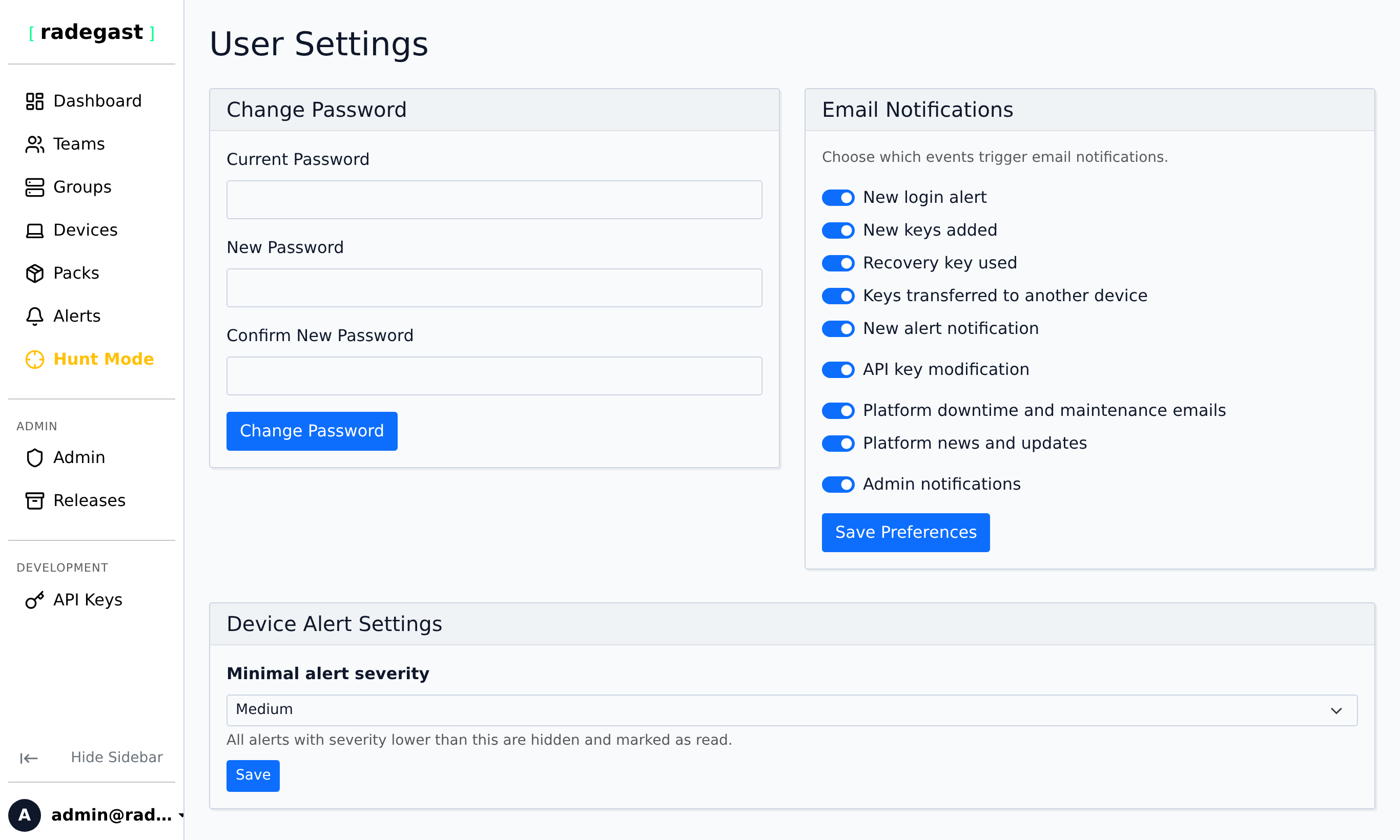
Profile Settings
Note: Changing your email may require re-verification.
Security Settings
Changing Your Password
In the Security section, enter your current password
Enter your new password
Confirm the new password
Click “Change Password”
Tip: Use a strong, unique password that you haven’t used elsewhere.
Managing API Keys
See the API Keys Guide for detailed instructions on creating and managing API keys.
Notification Settings
See the Notifications Guide for detailed instructions on configuring your notification preferences.
Encryption Keys Management
Your encryption keys are the foundation of Radegast EDR’s end-to-end encryption. Private keys are stored securely in your browser’s local database and never sent to the server.
Key Types
Primary Keys: Your main encryption key pairs used for decrypting logs
Recovery Keys: Special AES-256-GCM keys used to encrypt your private keys. The server stores encrypted private keys but CANNOT decrypt them without your recovery key.
Viewing Your Keys
The Encryption Keys section displays:
Key ID
Name (if assigned)
Public key
Key type (regular, recovery)
Last used timestamp
Whether it’s currently active in your browser
Adding a New Key Pair
In the Encryption Keys section, click “Add New Encryption Key Pair”
Enter a name for the key pair (e.g., “Work PC”, “Home Laptop”)
Optionally mark as a recovery key (this creates a backup key with encrypted private key stored on server)
Click “Generate & Register”
IMPORTANT: If you marked it as a recovery key, you will be shown a recovery key - this is a random AES key that encrypted your private key. SAVE THIS KEY - you will never see it again. The server stores the encrypted private key but cannot decrypt it without this recovery key.
Confirm you have saved the recovery key
Recovery Key Information
Recovery keys are AES-256-GCM encryption keys generated in your browser
They are used to encrypt your backup private key before it’s sent to the server
The server stores only the encrypted private key - it cannot read your logs without the recovery key
You must have at least one recovery key at all times
If you lose all recovery keys, you will permanently lose access to logs encrypted with those keys
Deleting Keys
Find the key you want to delete in the list
Click the Delete button
WARNING: Deleting a key will make any logs encrypted with that key’s public key permanently unreadable unless you have a backup
You cannot delete the last recovery key - at least one must always exist
Key Transfer
Use key transfer to move your private key from one browser/device to another without exposing it to the server:
On the device with your key, go to Settings > Encryption Keys
Click “Transfer to Another Browser”
On the new device, go to Keys > Transfer
Enter the transfer ID from the first device
The key will be securely transferred using ephemeral encryption
Extended EDR Mode
Extended EDR mode changes how alerts are managed and unlocks advanced response options:
Basic Mode (Default): Alerts are “active” until you mark them as seen. Resolution is optional.
Extended EDR Mode:
Alerts remain “active” until you explicitly set a resolution (True Positive, False Positive, etc.). Marking as “seen” doesn’t close the alert.
Unlocks Active Response (Process Termination) and Prevention Allowlist settings inside your Device Groups page, allowing automated process killing for high-severity rule matches and granular process termination exemptions (requires EDR agent version python 0.6.0 or higher).
Enabling Extended EDR Mode
In the Extended EDR section
Toggle “Enable Extended EDR Mode” to ON
Click “Save”
Note: This setting is per-user preference and affects only your view. Other users can have their own preferences.
Tip: Extended EDR mode is particularly useful for security operations teams that need to track alert resolution status separately from read status and manage active endpoint prevention settings.
API Keys Support
API keys allow programmatic access to the Radegast API for automated integrations.
Enabling API Keys
In the Extended Settings section
Toggle “Enable API Keys Support” to ON
Click “Save”
Once enabled, you can create and manage API keys from the API Keys page.
MFA Settings
See the MFA Guide for detailed instructions on setting up and managing your multi-factor authentication.
Tips
Changes apply immediately: Most settings changes take effect right away
No confirmation email: Password and email changes don’t trigger confirmation emails by default
Session persistence: Changing security settings doesn’t log you out of existing sessions
Browser storage: Some settings may be stored in your browser’s local storage
Role limitations: Some settings may be hidden or disabled based on your user role
Tip: Review your settings periodically to ensure they still match your preferences.
Tip: If you’re an admin, you can access global settings in the Admin panel for system-wide configurations.
Troubleshooting
Settings not saving
Form validation: Some fields may have validation errors
Network issue: Your changes may not have been transmitted
Server error: There may be a temporary server issue
Solution: Check for error messages, refresh the page, and try again
Changed email but can’t log in
Verification required: Your new email may need verification
Old email still works: Try logging in with your old email
Solution: Check your new email for a verification link
Password change not working
Current password wrong: You may have entered the wrong current password
New password too weak: The system requires minimum 8 characters
Same as old: The new password may need to be different from the old one
Solution: Ensure all fields are correct and meet requirements