Teams Management
Feature Overview
Teams are the primary organizational unit in Radegast EDR. They allow you to group users together and control what resources they can access and what actions they can perform. Each team has its own set of permissions, device groups, and detection packs, enabling fine-grained access control for your security operations.
What Value Does This Feature Add?
Access Control: Define who can access which devices and alerts
Permission Granularity: Set different permission levels for packs, invites, admin, and logs
Organizational Structure: Model your organization’s hierarchy with managing team relationships
Collaboration: Enable users to work together on security monitoring and response
Scalability: Grow your security operations by adding teams as needed
Step-by-Step Guide
Accessing Teams
Log in to your Radegast Console
Click “Teams” in the main navigation menu
The Teams page will display all teams you have permission to view
Understanding Teams List
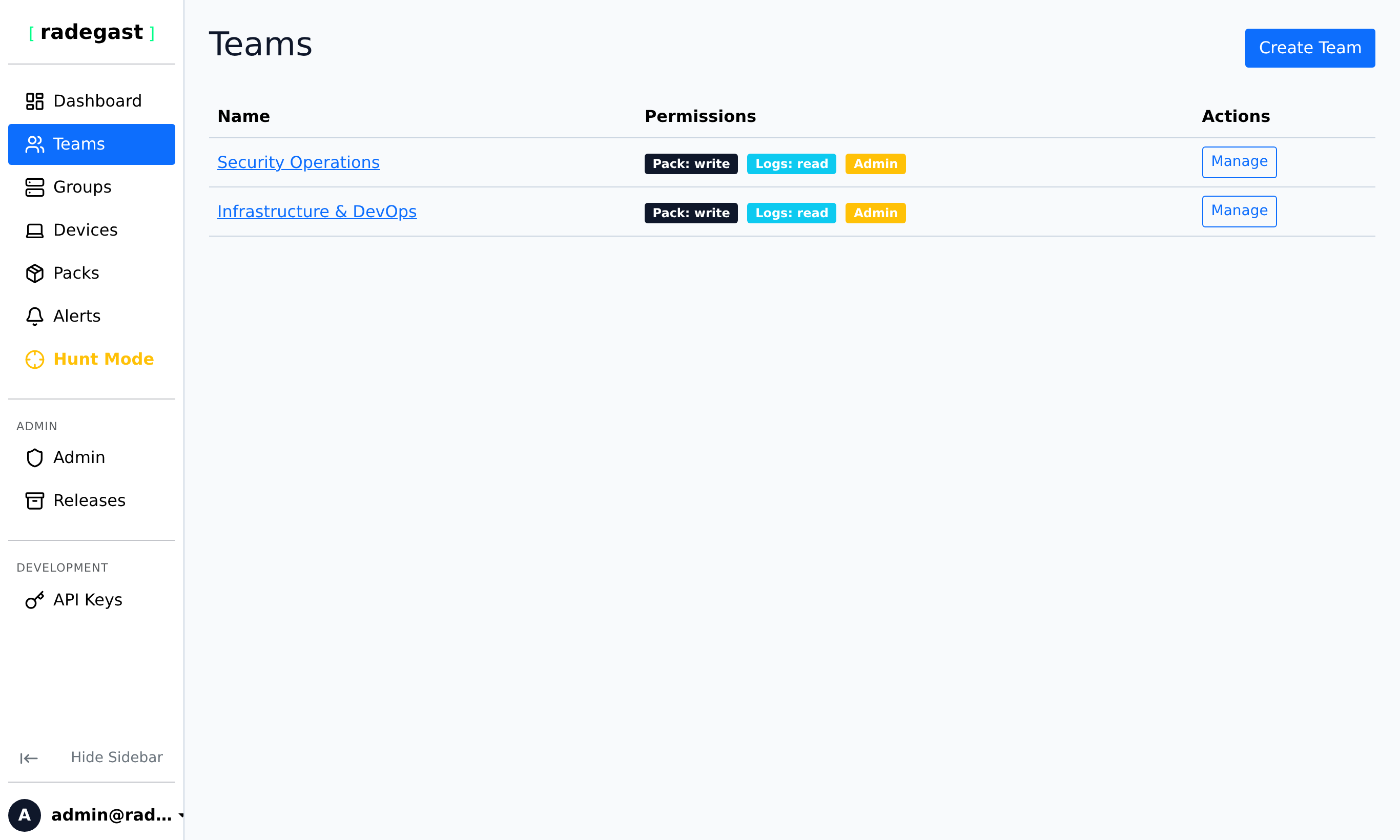
The Teams page shows:
Team Name: The name of the team
Permissions Summary: Icons or labels showing the team’s permission levels
Member Count: Number of users in the team
Device Count: Number of devices accessible through this team’s groups
Actions: Buttons to view details, edit, or delete the team
Creating a New Team
Steps
On the Teams page, click “Create Team” or “Add Team”
In the creation form:
Team Name: Enter a descriptive name (e.g., “Security Operations”, “Development Team”)
Pack Permission: Select what level of pack management this team has:
None: Cannot view or modify packs
Read: Can view packs but not create or modify them
Write: Can create, modify, and delete packs
Invite Permission: Select who can invite new members:
None: Only admins can invite
Write: Team members can invite others
Admin Permission: Select administrative capabilities:
None: No admin capabilities
Write: Full admin capabilities for this team
Logs Permission: Select what log access this team has:
None: Cannot view logs
Read: Can view logs from accessible devices
Managing Team (Optional): Select a parent team that manages this team
Click “Create Team”
Tip: The managing team relationship creates a hierarchy. The managing team can administrate this team, and permissions can flow through the hierarchy.
Note: If you select Admin permission as “None”, you must specify a managing team that has admin=write, or you won’t be able to manage this team.
Viewing Team Details
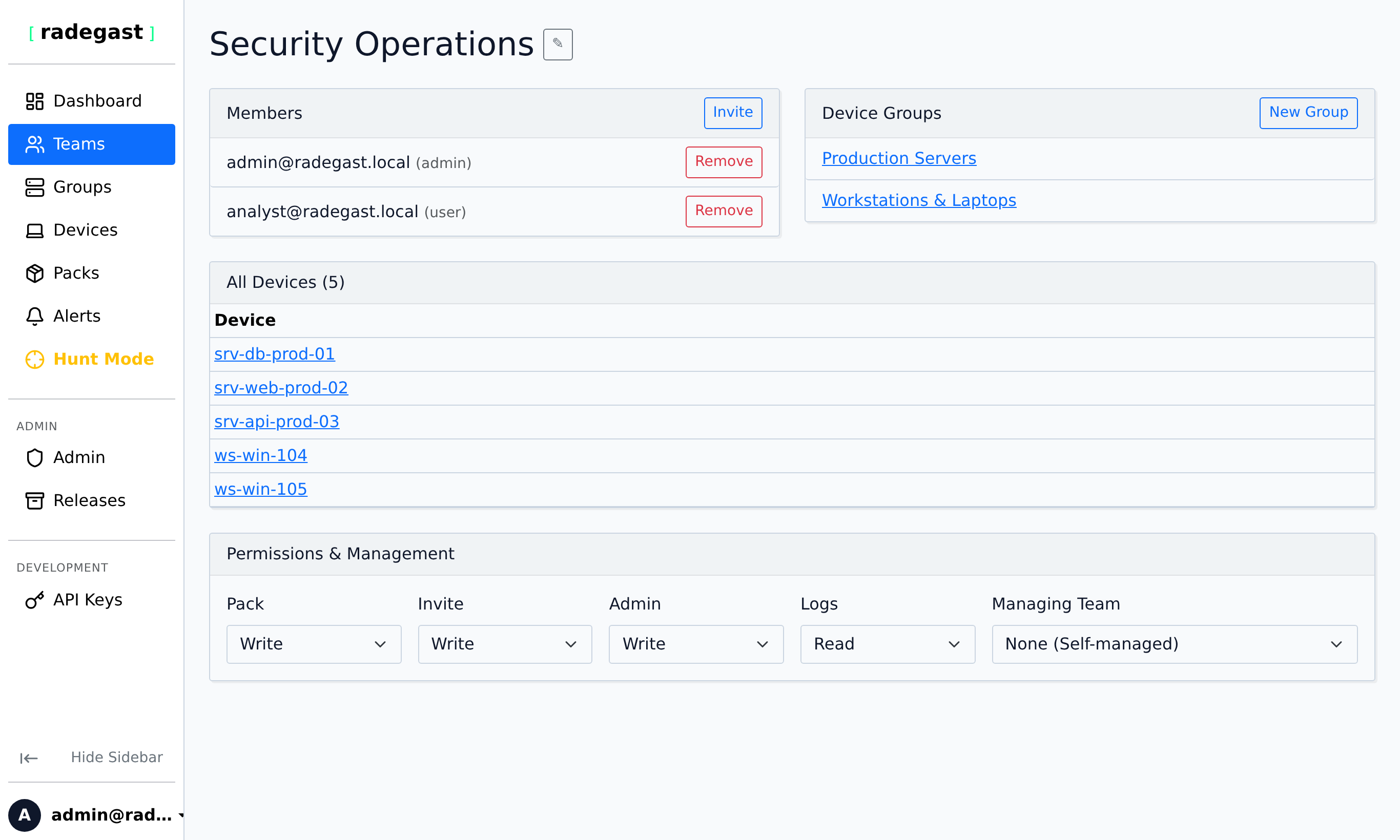
Click on a team name in the Teams list
The details panel shows:
Basic information (name, ID, when created)
Permission Levels: All four permission types and their settings
Managing Team: If this team is managed by another team
Members List: All users in this team
Device Groups: Groups owned by this team
Detection Packs: Packs accessible to this team
Actions: Buttons to edit team settings, manage members, or delete
Managing Team Members
Adding a Member
Click on the team
In the Members section, click “Add Member”
Enter the user’s email address
Select the user from the dropdown (they must already have a Radegast account)
Click “Add”
Note: The user will automatically have access to all device groups and packs assigned to this team.
Removing a Member
Click on the team
Find the member in the Members list
Click the “Remove” or trash icon next to their name
Confirm the removal
Warning: Removing a user from a team removes their access to that team’s resources. They may still have access through other teams.
Editing a Team
Click on the team
Click “Edit Team” or the edit icon
Modify any of the team settings:
Team name
Permission levels
Managing team
Click “Save Changes”
Note: Changing permission levels may affect what team members can do. Be careful when reducing permissions.
Managing Team Permissions
Teams have four types of permissions:
Pack Permission
None: Team members cannot view or manage detection packs
Read: Team members can view packs but not modify them
Write: Team members can create, edit, and delete packs
Invite Permission
None: Only users with admin privileges can invite new members
Write: Any team member can invite new users to the team
Admin Permission
None: Team has no administrative capabilities (must have a managing team)
Write: Team members with appropriate roles can administer the team
Logs Permission
None: Team members cannot view logs from devices
Read: Team members can view and triage logs/alerts
Tip: Set permissions based on the principle of least privilege. Only grant Write permissions to users who need them.
Team Hierarchy (Managing Teams)
You can create a hierarchy of teams:
Parent Team: A team that manages another team
Child Team: A team managed by another team
Benefits:
Centralized administration of multiple teams
Permission inheritance (admin permissions flow through the hierarchy)
Delegated management for large organizations
Example Structure:
Security Organization (admin=write)
├── Incident Response Team (managing_team=Security Organization)
│   └── Junior Analysts Team (managing_team=Incident Response Team)
└── Threat Intelligence Team (managing_team=Security Organization)
Deleting a Team
Click on the team
Click the “Delete” button
Confirm the deletion
The team and all its memberships will be removed
Warning: Deleting a team cannot be undone. Consider reassigning members to other teams before deletion.
Note: You cannot delete a team that is the managing team for other teams. Reassign those teams first.
Tips & Validations
Team Name: Must be unique. Use descriptive names that reflect the team’s purpose.
Permission Chain: Every team must either have admin=write or be managed by a team that ultimately has admin=write in its chain.
Managing Team: You must have admin permissions on the managing team to create a team with a managing team relationship.
Member Limits: There’s no hard limit, but very large teams may impact performance.
Cross-Team Access: A user can be a member of multiple teams, gaining access to all their combined resources.
Tip: Create teams that mirror your organization’s structure or security operations model.
Tip: Use separate teams for different environments (Production, Development, Testing) to maintain security isolation.
Tip: Give new teams minimal permissions initially, then increase as needed.
Tip: The default team for new users (created automatically on registration) has full permissions and is managed by the user themselves.
Troubleshooting
Can’t create a team
Permission denied: You need to be a member of a team with admin permissions, or be an admin user
Missing managing team: If setting admin=None, you must specify a managing team
Invalid managing team: You must have admin permissions on the managing team
Form validation: All required fields must be filled
Can’t see any teams
No teams: You may not be a member of any teams
Permission issue: Your account may not have been properly set up
New user: New users are automatically added to a default team
Can’t add a member to a team
User doesn’t exist: The user must have a registered Radegast account
Already a member: The user may already be in this team
Permission denied: You need admin or invite permissions on the team
Can’t edit a team
Permission denied: You need admin permissions on the team
Invalid permission combination: The permission chain must be valid (someone must have admin=write)
Team members can’t see devices
No device groups: The team may not have any device groups assigned
Logs permission: The team may need logs=read permission
Device assignment: Devices may not be assigned to groups owned by this team
Can’t delete a team
Permission denied: You need admin permissions on the team
Has dependent teams: Another team may have this team as its managing team
Team doesn’t exist: The team may have already been deleted